
Editorial Board
Series-level production
Manage categories and topics, batch-run autopilot, and organize series output under a single management surface built on the existing render pipeline.
Storyboard works one reel at a time. Even in autopilot, it is still generating a single reel from a single brief. Editorial Board takes that further: start with one category premise, generate 5, 10, or 20 distinct topics underneath it, then execute a whole series of videos instead of just one. Each topic becomes its own reel with its own brief, assets, and output, all organized under the same category.
Release 3 ships Editorial Board, Avatar, an expanded Typography system, Analysis Mode, and Ideation Seeder together. The video below demos the core features in one reel.
Manage categories and topics, batch-run autopilot, and organize series output under a single management surface built on the existing render pipeline.
Add an AI-generated avatar host to any reel. Set position, choose from cast, and layer over scene media directly inside the compose flow.
New title card templates covering motion glow, chrome glass, neon, metallic, and more — all rendered client-side for zero AI token spend.
Extract the script, audio, key frames, style, and narrative arc from any reference video — then seed the render pipeline with the full recreation brief.
A new front door before storyboard. Start from an analysis, a reference image, or a blank prompt — iterate on story and style without spending tokens on full renders.
This is a management surface for teams producing repeatable editorial video formats: news reel videos, explainers, documentary-style shorts, faceless news channels, and visual essays. The difference from storyboard is scale: storyboard handles one reel at a time, while Editorial Board can take one category premise and expand it into many topic-based videos in the same run.
Browse categories like Fashion, News, College, or Political News, then drill into nested sub-categories when a topic grows into a series.
Create topics manually or ask AI for 5, 10, or 20 ideas with one-sentence blurbs, then turn that single category premise into a full queue of separate video jobs.
Autopilot picks up category defaults automatically, while manual mode lets the operator specify each component directly: summary, script, image, title card, and media choices.
Once a topic is composed, the downstream work stays in the proven slideshow, storyboard, audio, captions, and render pipeline, with `editorial-creation` acting as the map mode before final render.
An on-screen presenter walks through category management, topic ideation, and the series workflow.
A team creates a category like College Admissions or Fashion, assigns a default title card, duration, model, aspect ratio, and other defaults, then lets autopilot inherit that setup for each topic job. For a single manual run, the operator can override each component individually and choose the exact summary, script, hero image, and scene media.
The presenter explains how autopilot inherits category defaults and batch-generates a full topic queue without manual compose steps.
Editorial topics are tracked as working objects, not loose prompts. For now, Generated is the real done state. Published stays as a forward-looking toggle for future social distribution.
A one-sentence angle exists, but there is no script or scene structure yet.
Summary, reference text, format, title card, uploads, and reusable assets are all selected here.
The topic is handed into the existing scene, narration, captions, and compile path.
The final MP4 exists. This is the complete state for the current milestone.
Later this can push to social platforms and generate descriptions, tags, and publish metadata.
These reels were produced by hand before Storyboard mode existed — no automation, no queue, just direct scene assembly. Editorial Board exists to make that process repeatable: set a category, generate topics, and let autopilot produce the same faceless informational format at scale.
Hand-assembled before any automation existed. The format, pacing, and structure are exactly what Editorial Board now produces through autopilot.
A second manually produced reel from the same period — two videos that would now be queued and generated as a single autopilot batch.
The admin UI screenshots below are the current Editorial Board build and walk a single topic, Top 5 California dining halls, through landing, category management, summary, script, asset sourcing, scenes, and creation review.
One of the generated videos from the `Top 5 college` category series, produced through autopilot and surfaced directly in the CRUD list.
A second autopilot-generated reel from the same category series, matching the generated entries shown in the topic queue.
A third autopilot output from the same `Top 5 college` category series, showing the generated-video result that the queue can open and play.
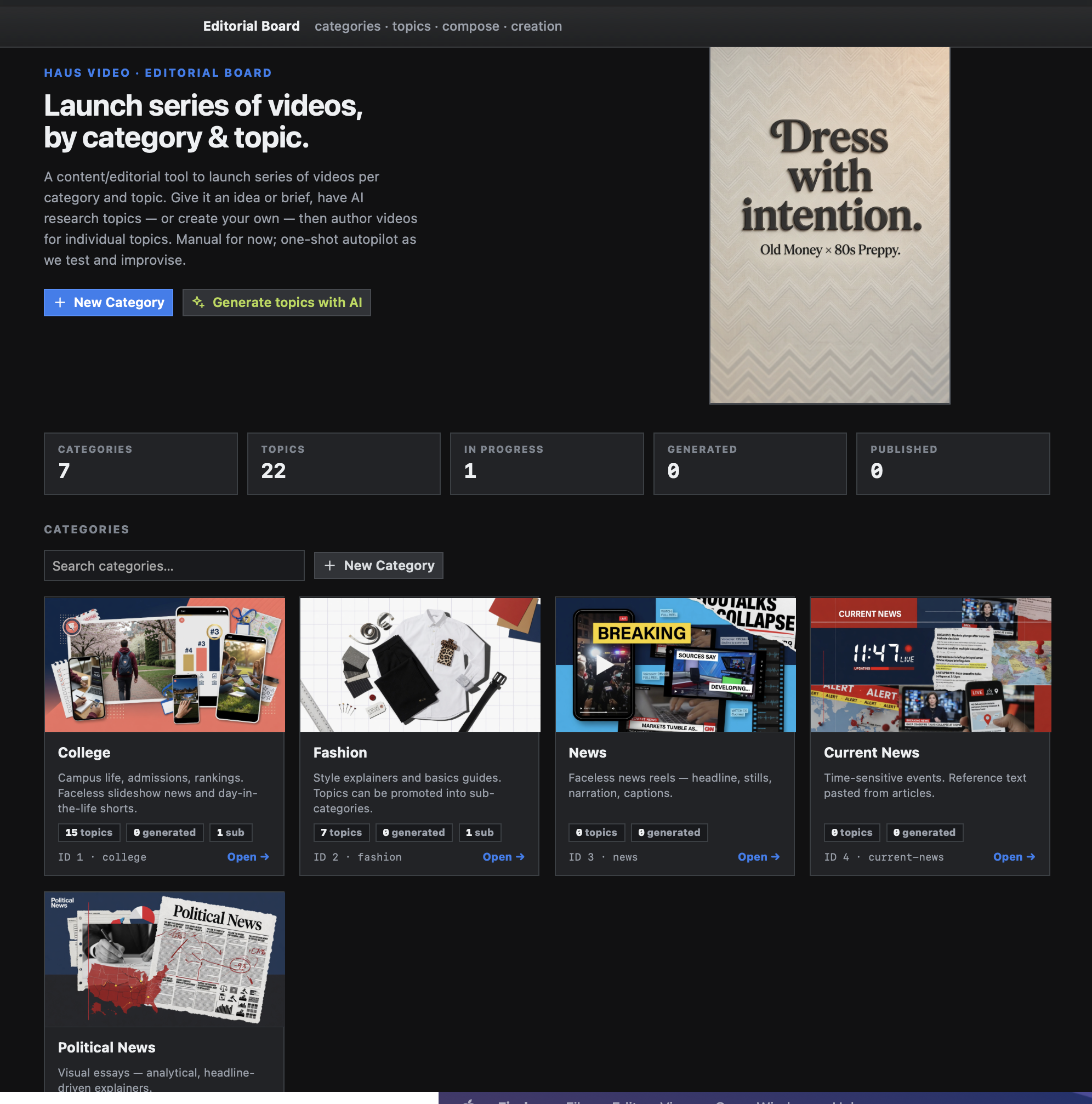
Category cards, topline counts, and direct actions for manual category creation or AI-assisted topic generation.
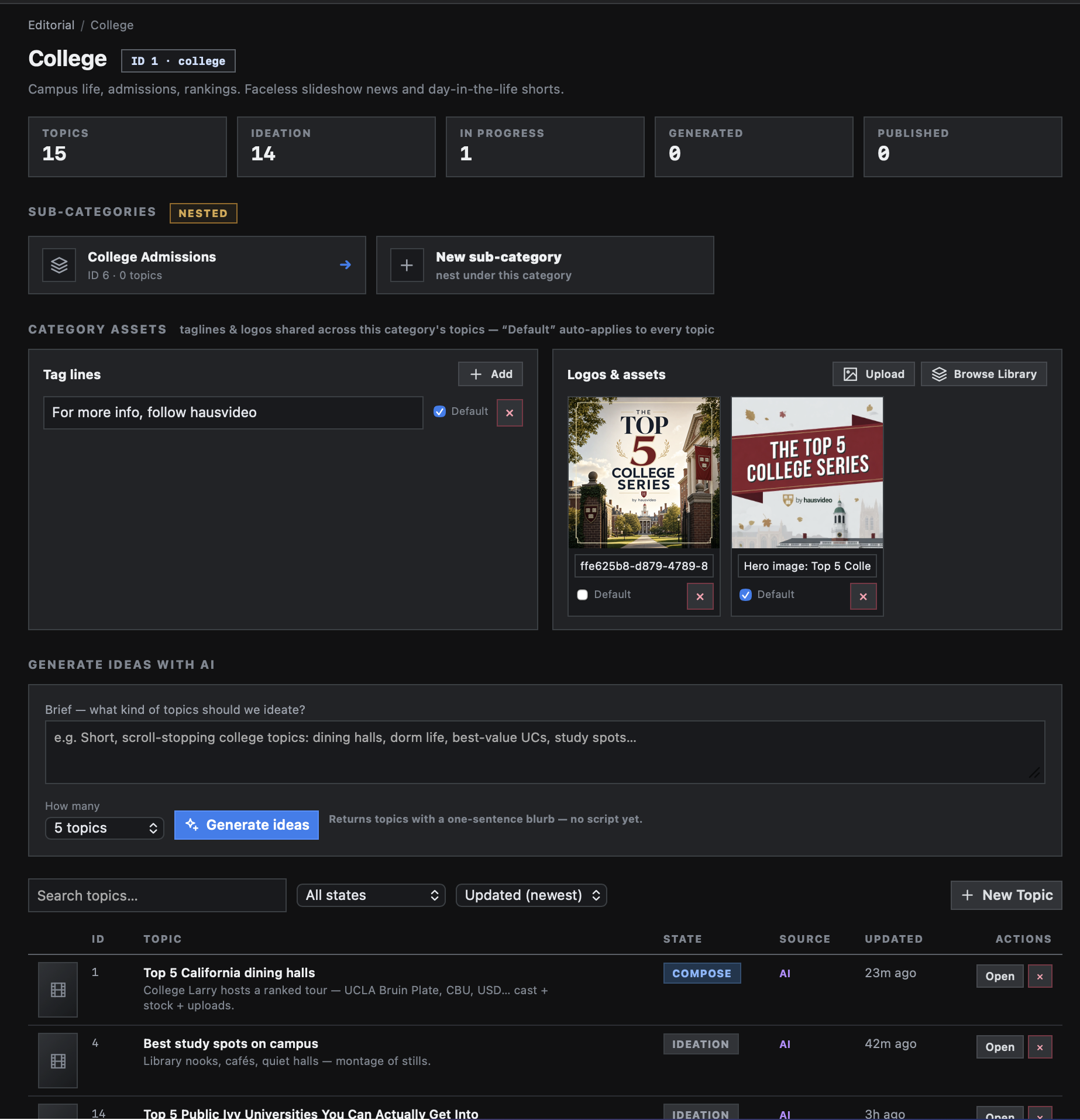
Sub-categories, default tag lines, shared artwork, and a topic table all live together before execution.
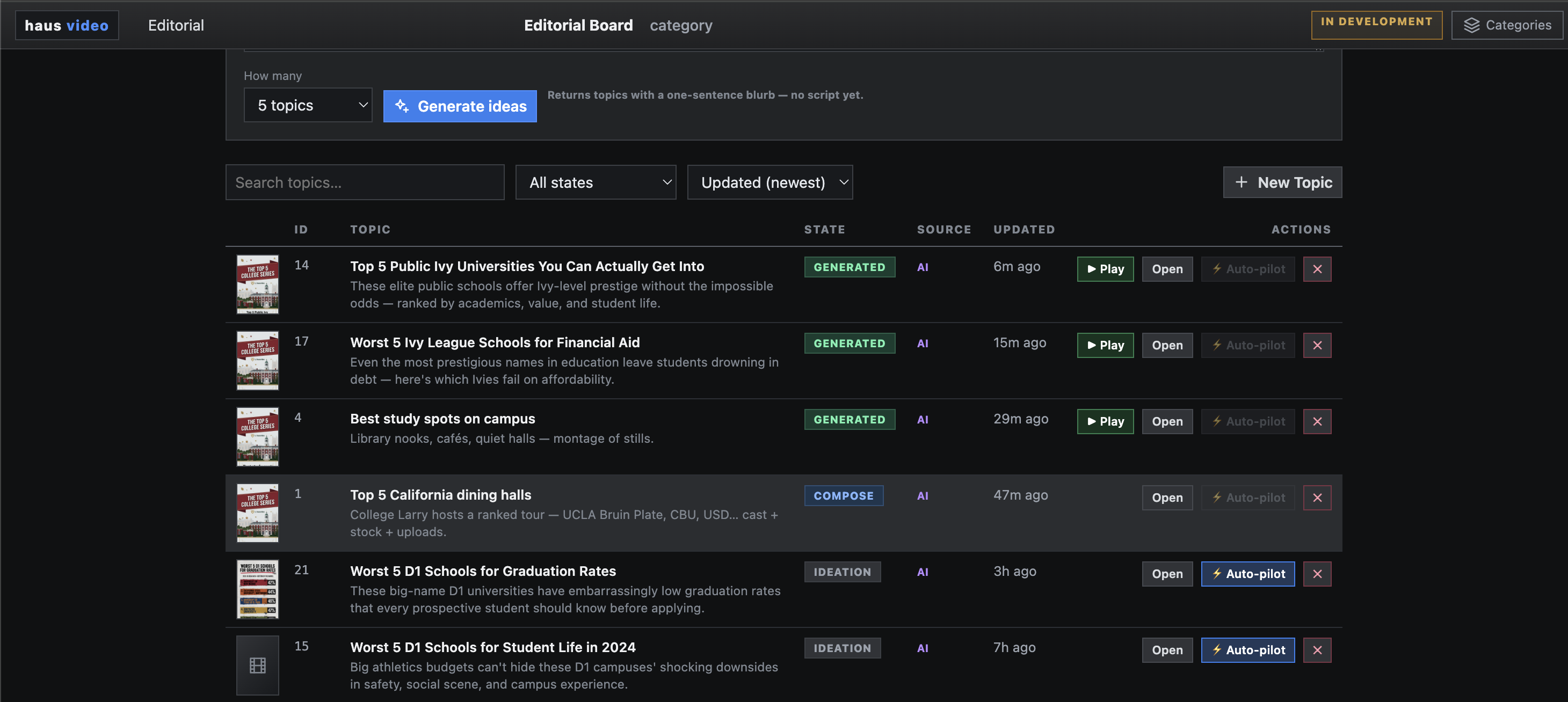
Search, filter by state, trigger autopilot, open generated reels, and keep topic progress visible instead of burying it in renders.
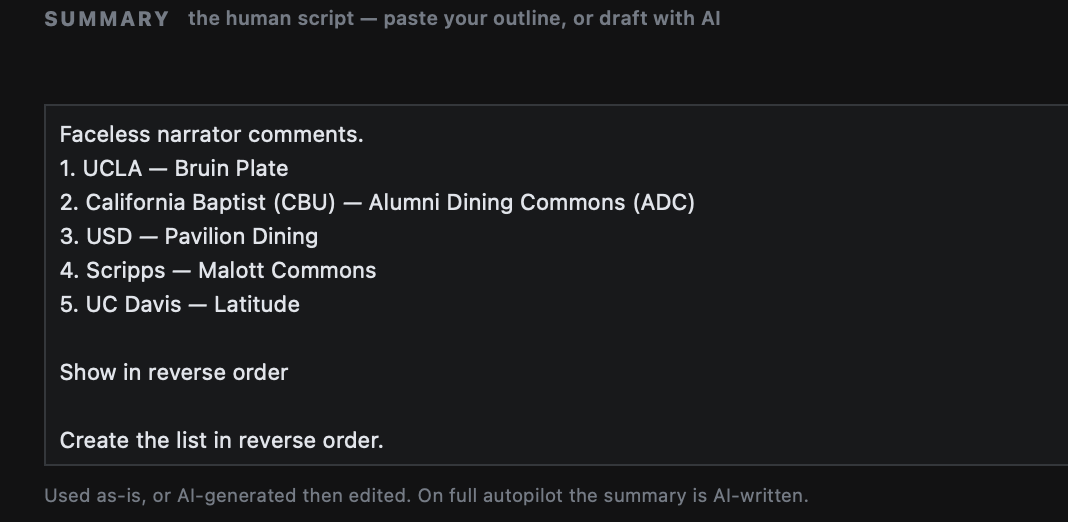
The editor can paste a ranked outline directly, keep it as-is, or ask AI to refine it later. Autopilot is optional.
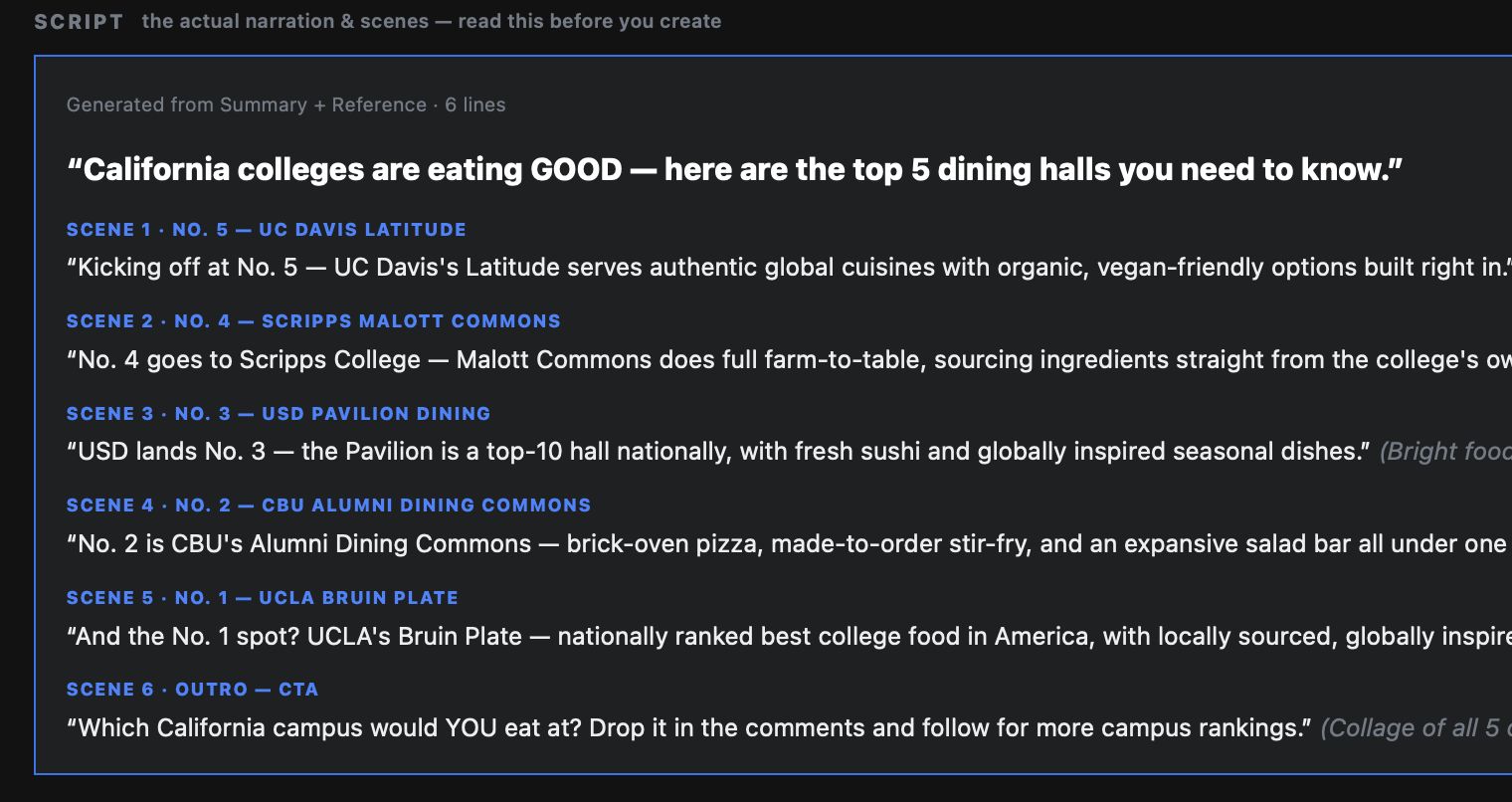
The actual scene-by-scene narration is reviewed before creation starts, so operators can catch tone and ordering issues early.
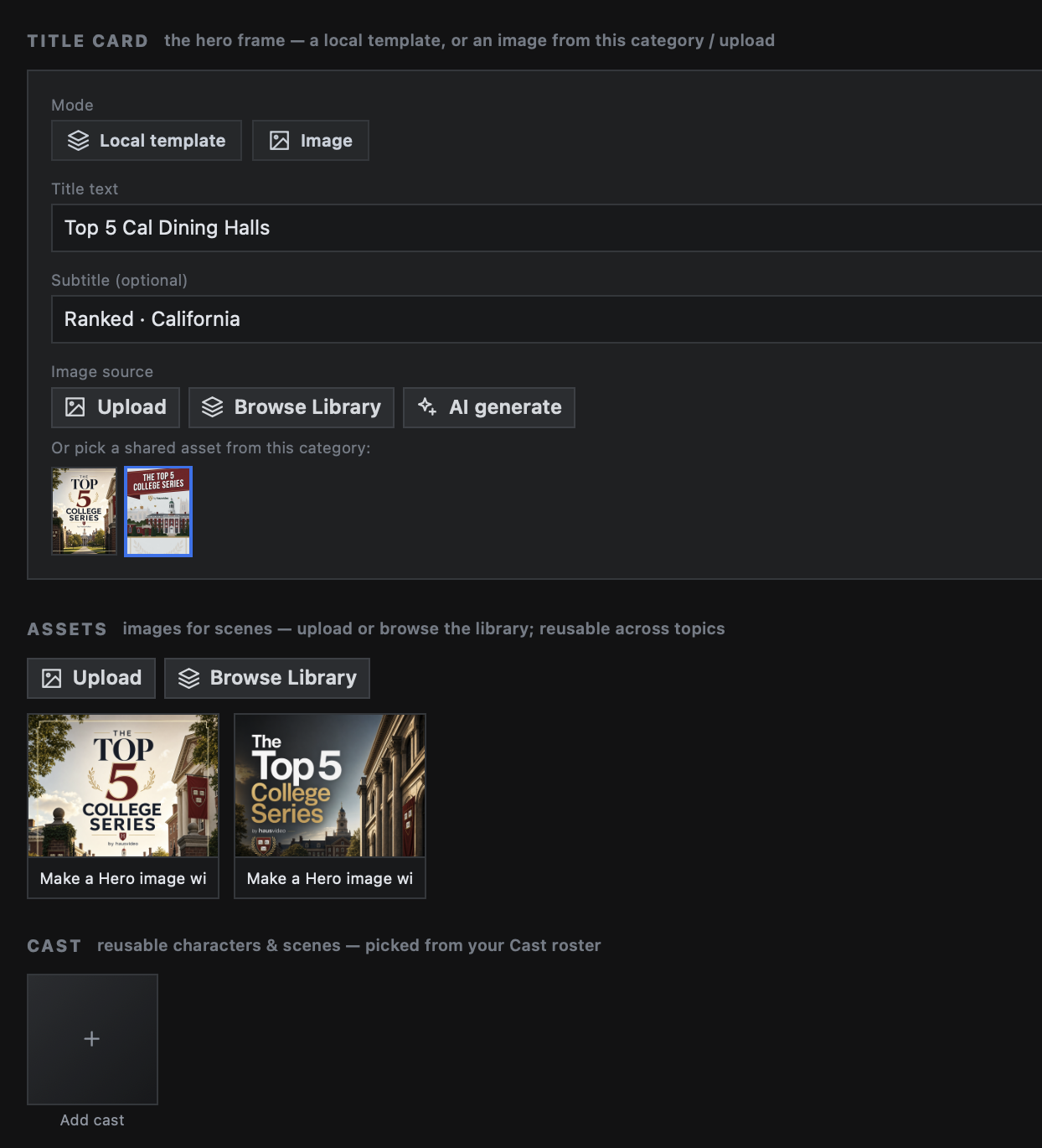
AI generation is just one source option. In manual mode, the operator can specify summary, script, hero image, title card, library assets, uploads, and persistent cast objects one component at a time.
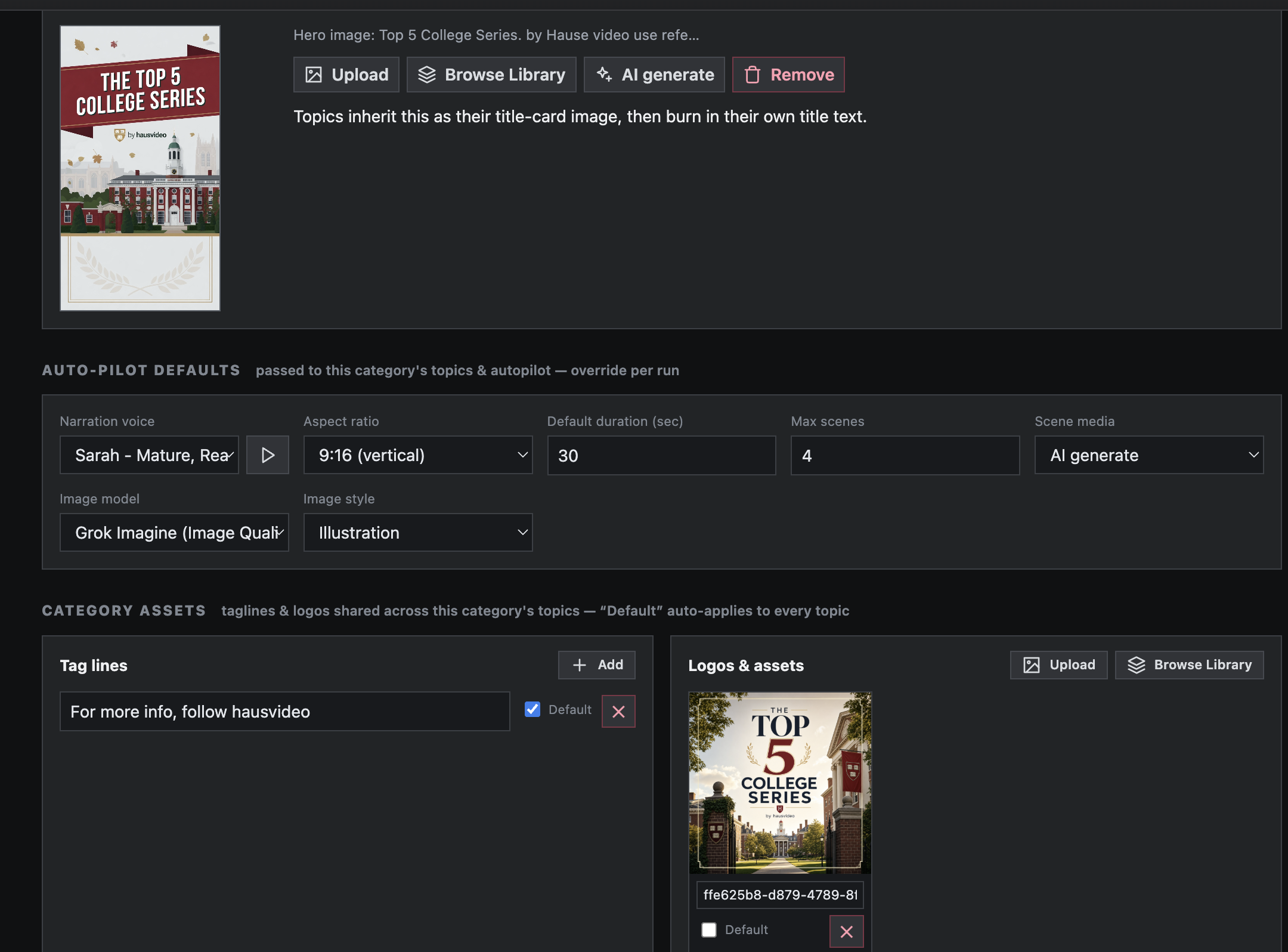
Voice, aspect ratio, duration, model, style, scene count, title-card behavior, and media defaults can be passed down to every topic so autopilot inherits them automatically and manual runs can override them per job.
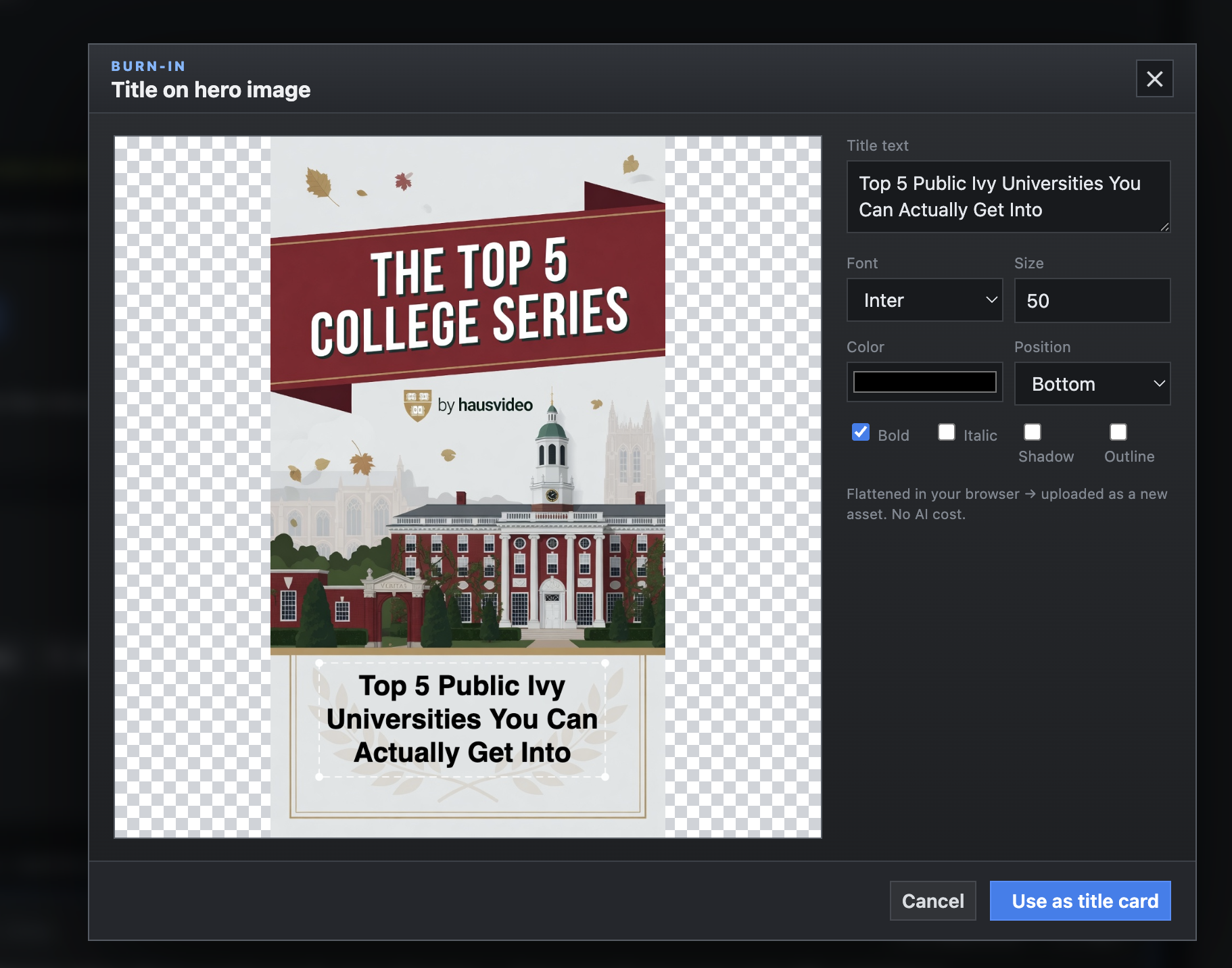
The operator can flatten title text directly onto the selected hero card, reserve the lower third for dynamic text, render it client-side in browser canvas, and fall back to server-side generation when needed, all without spending AI tokens on a fresh title frame.
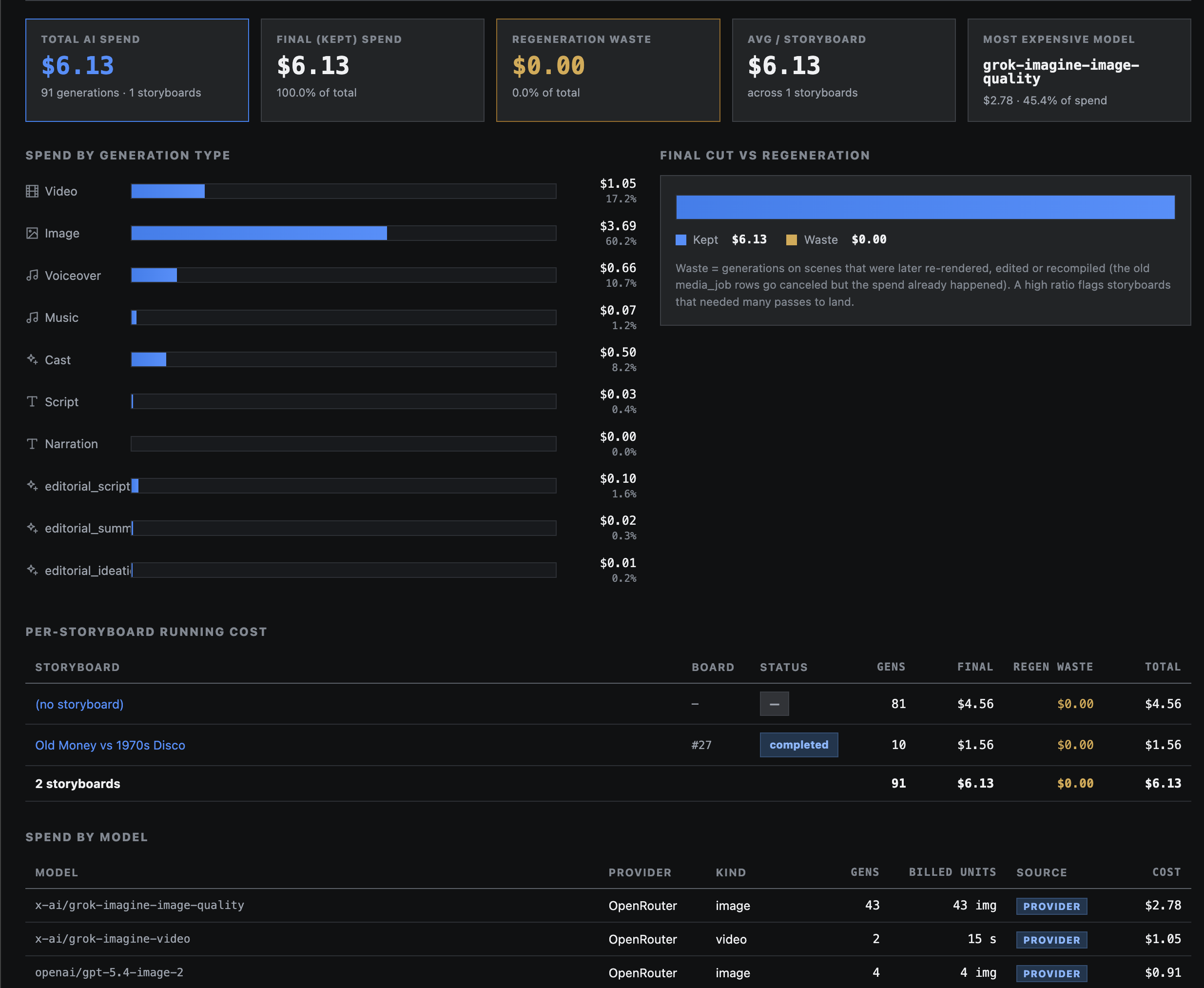
Editorial carries cost tracking through the whole system: overall spend across the board, rollups at the category level, and per-topic or per-storyboard detail so operators can see what autopilot kept, what was wasted, and which models or media types drove spend.
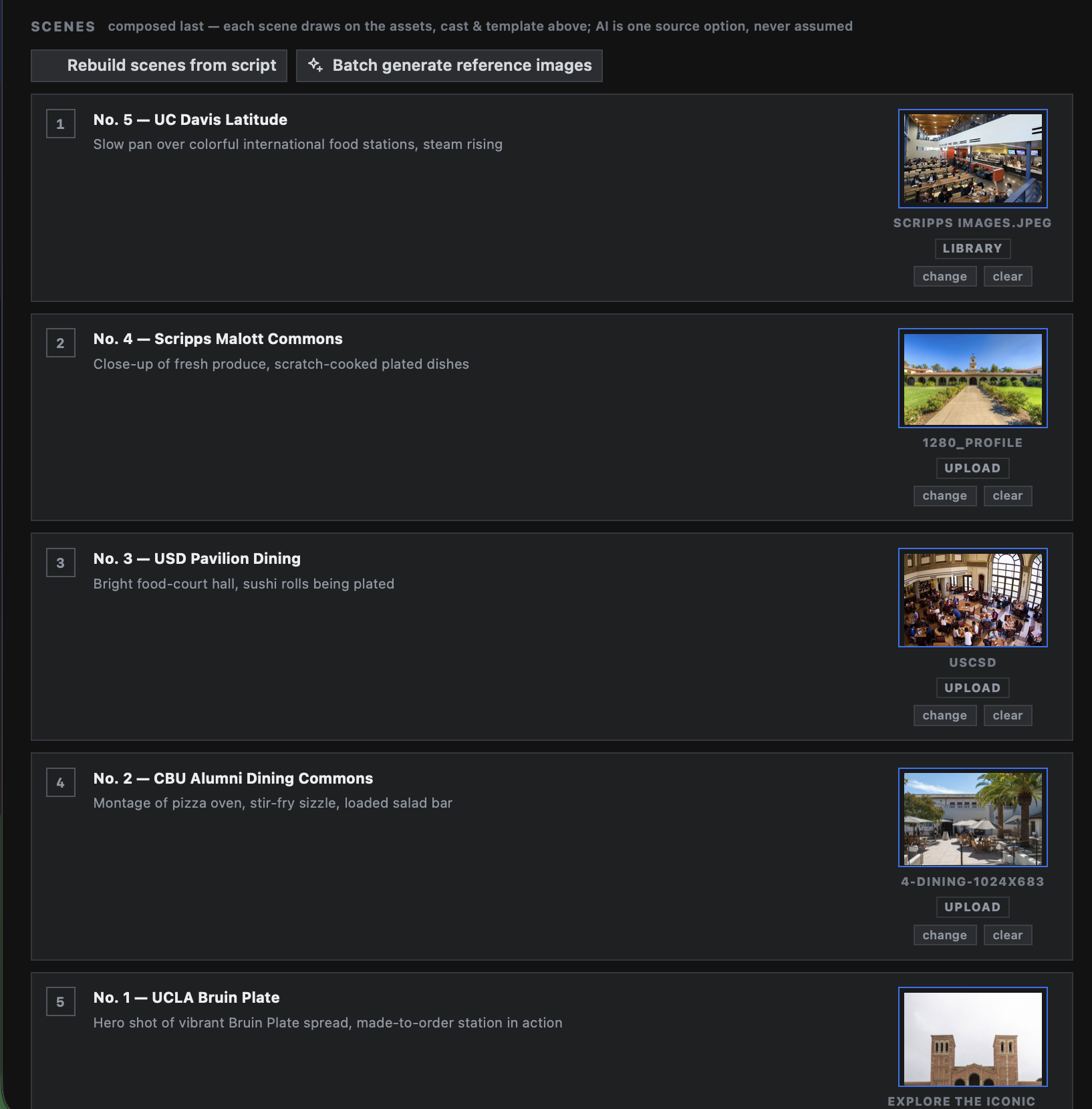
Library image, upload, clip, Pexels pull, or AI-generated reference can all sit side-by-side in a single topic build.
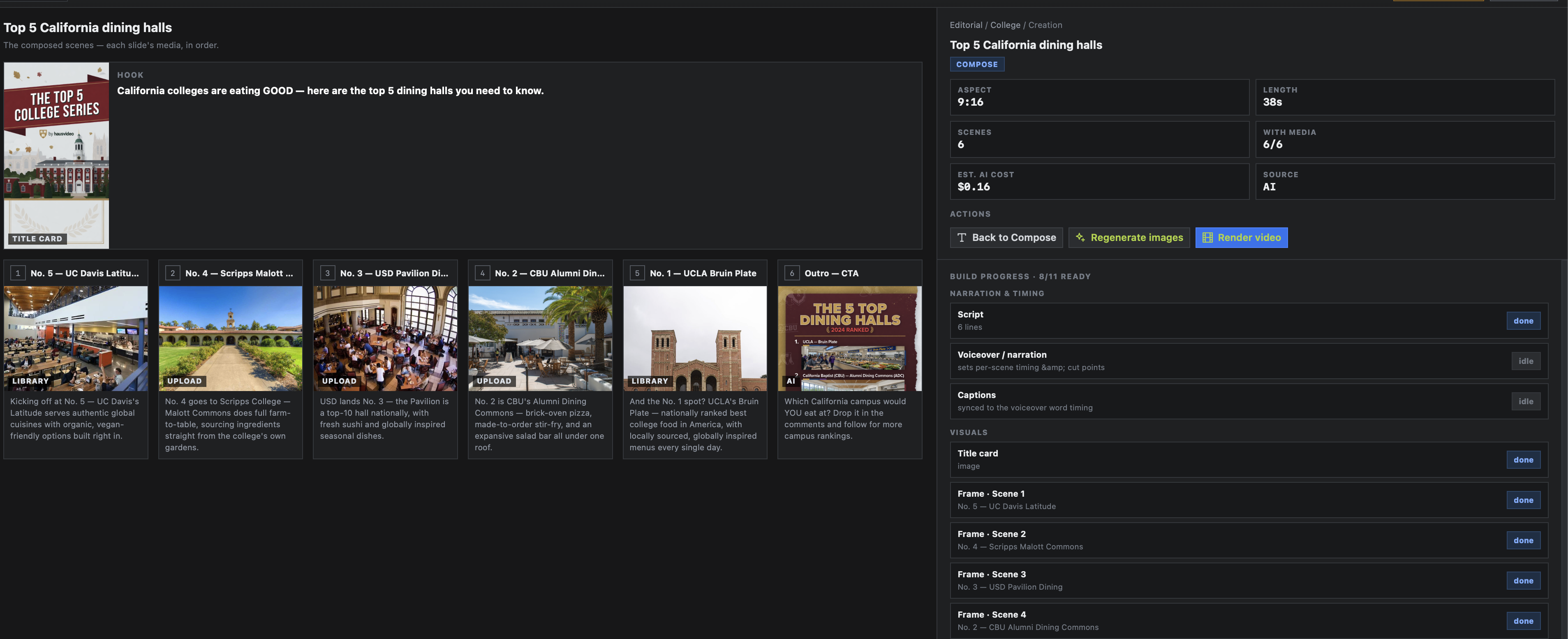
The system shows the exact scene order, media coverage, narration readiness, and render handoff using the existing production path, with `editorial-creation` functioning as the map mode before final render.
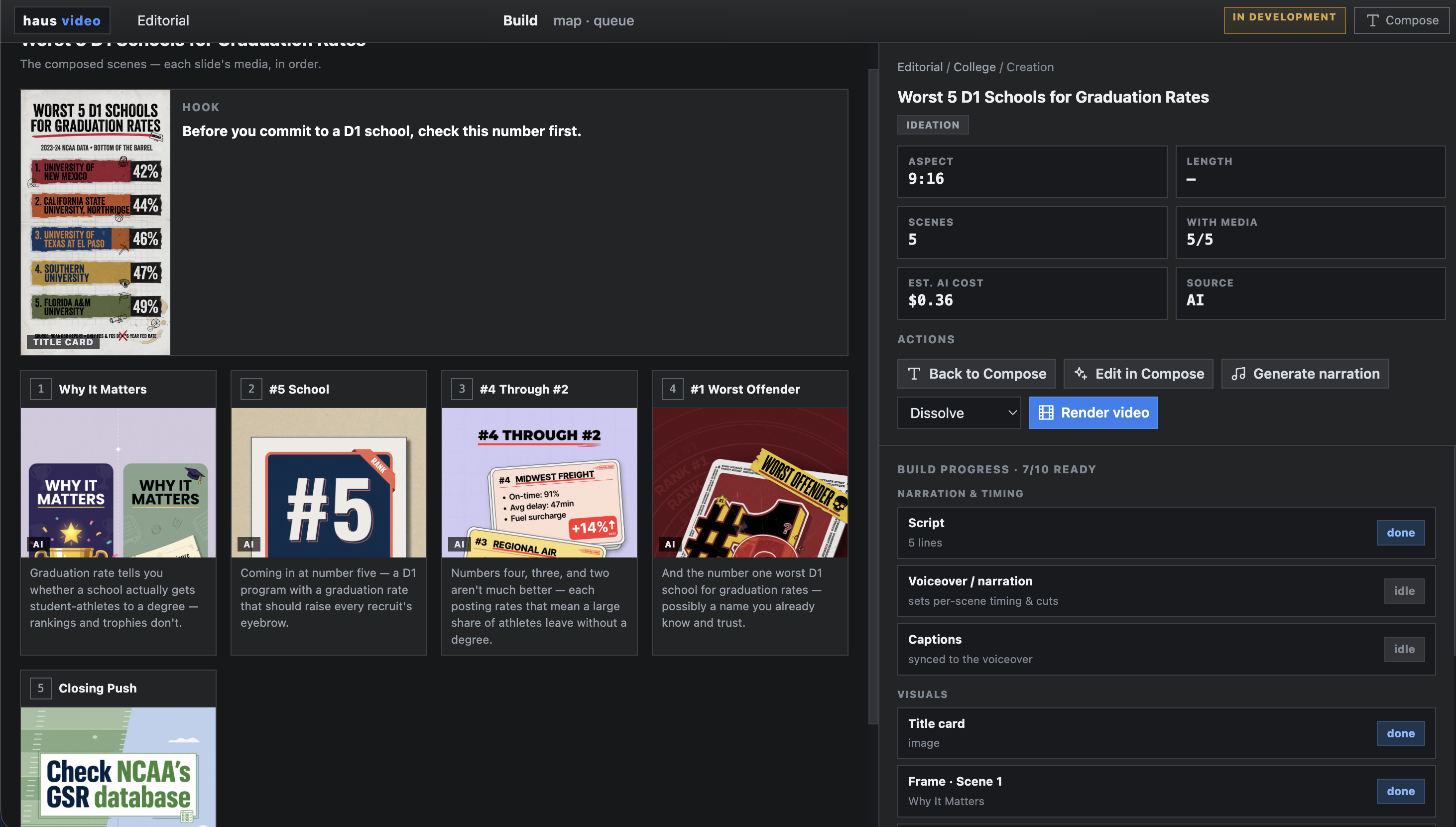
The build view shows the ordered cards, title frame, topic stats, and render controls together so the operator can inspect the package before committing.
The management layer is new, but the expensive mechanical work already exists. That is the leverage point: keep categories and topics independent while sending composed topics into the same proven authoring and render services.
The destination is still automated production: headline to script, voiceover, 10 to 20 images, captions, and a finished vertical video. But the bottleneck is operational structure. Editorial Board gives AI Studio the missing surface for categories, reusable assets, topic states, and manual review before a sheet-driven poller starts firing jobs.
The avatar module integrates directly into the compose workflow. Pick from cast, set position and scale, preview against scene media, and commit to the render queue without leaving AI Studio.
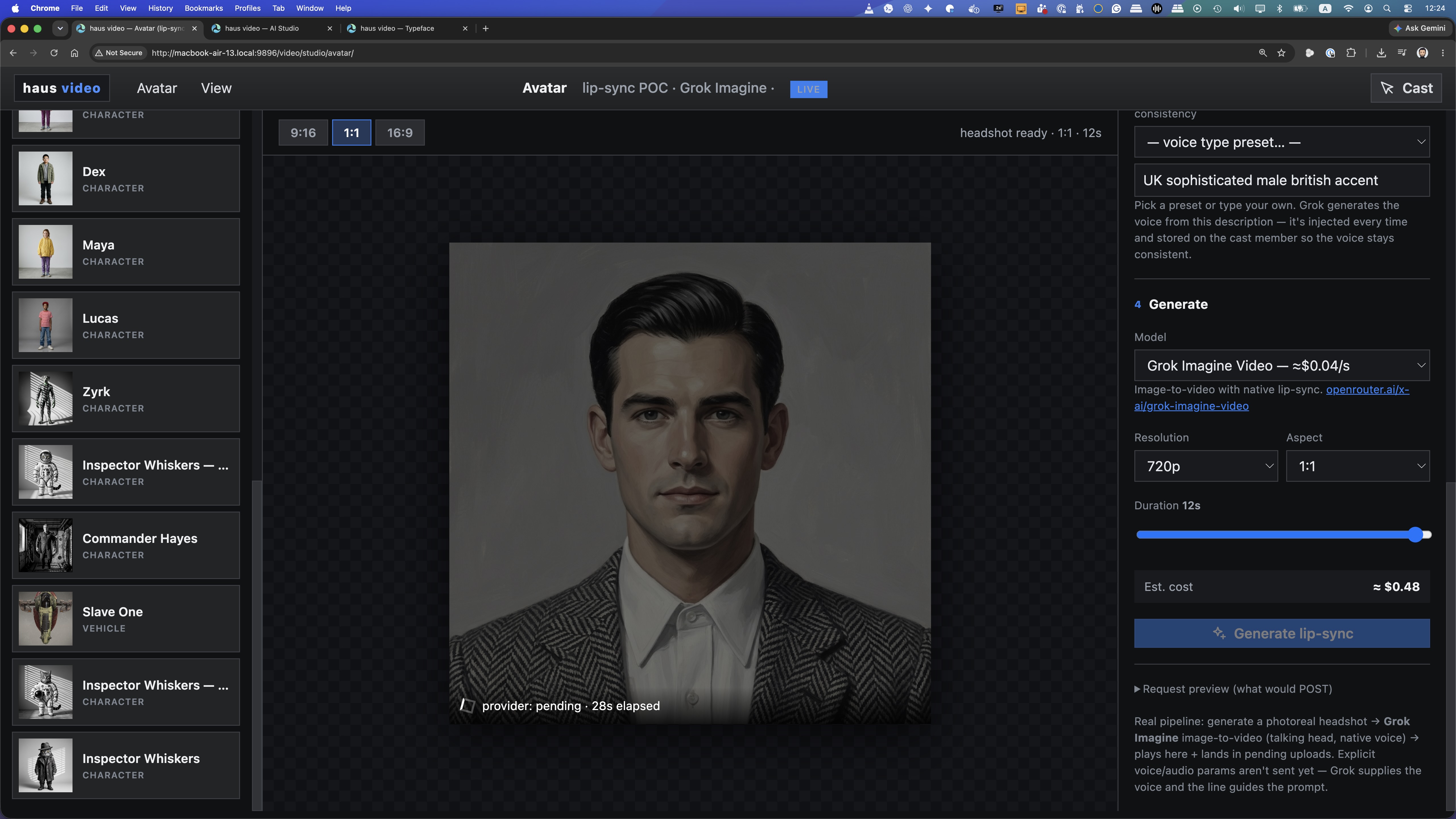
Browse cast, set position and scale, and preview the avatar composite against actual scene media before committing to the render queue.
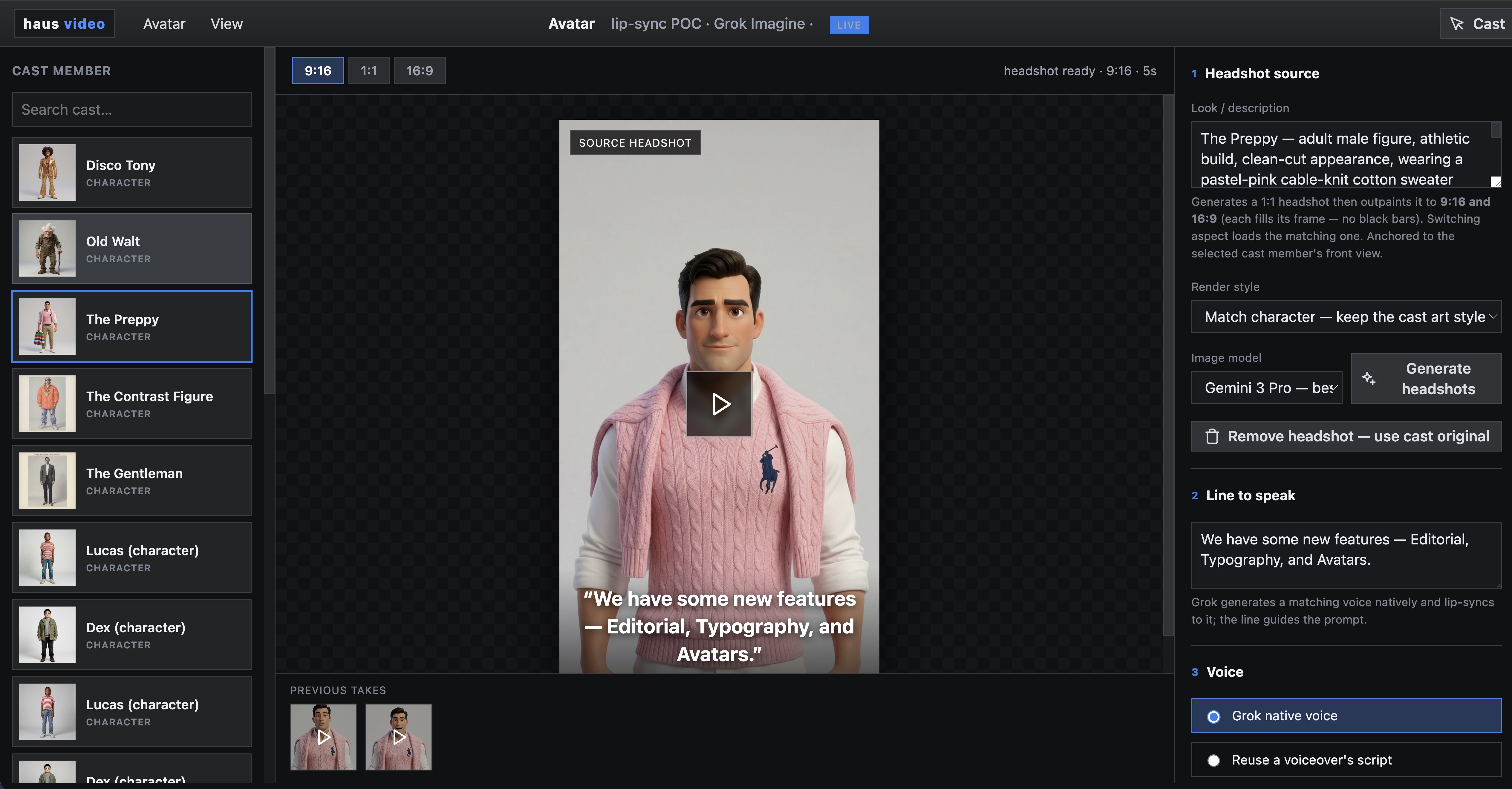
The cast roster surfaces all available avatar options so the right presenter can be assigned per topic or inherited across an entire category series.
Release 3 ships an expanded set of title card templates built entirely in HTML and CSS — motion glow, chrome glass, neon, metallic, and more. No AI token spend, no server round-trip, rendered in the browser.
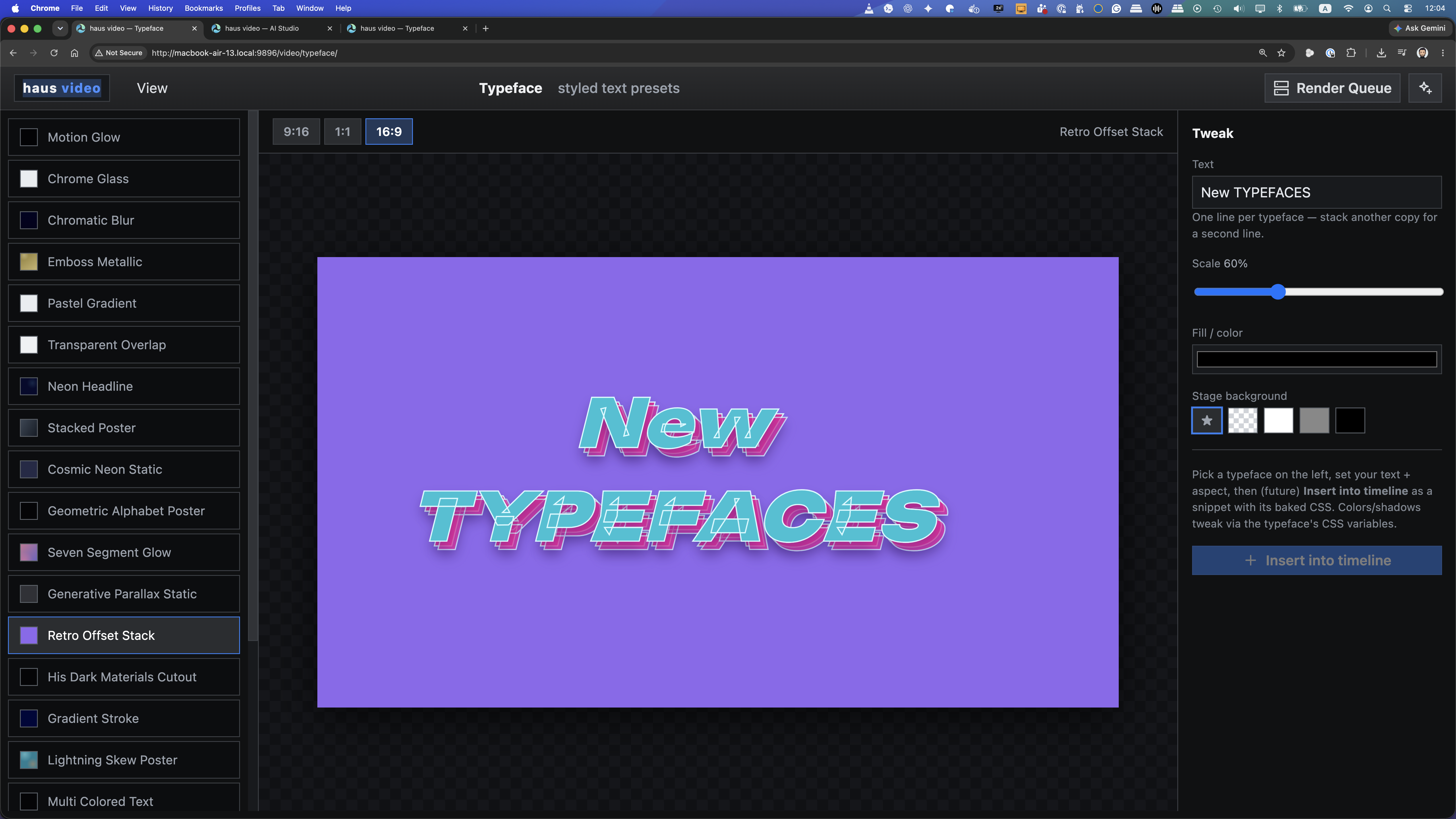
Each effect is a standalone HTML/CSS card that maps directly to a title card template in the compose and burn-in workflow.
An on-screen presenter introduces the expanded title card library and how effects are applied inside the compose and burn-in workflow.
Analysis Mode is built for commercials — ads up to three minutes and 100 MB. Drop one in and it extracts everything inside: the script, transcribed audio, generated key frames, visual style, lighting and lens specs, narrative arc, and a full recreation brief. The output seeds the render pipeline directly, no manual brief writing required.
Analysis Mode extracted the script, transcribed the audio, and generated a full production brief from the original. This is the video we produced from that brief — a recreation of the competitor's CGI work sock ad, built inside haus video's render pipeline.
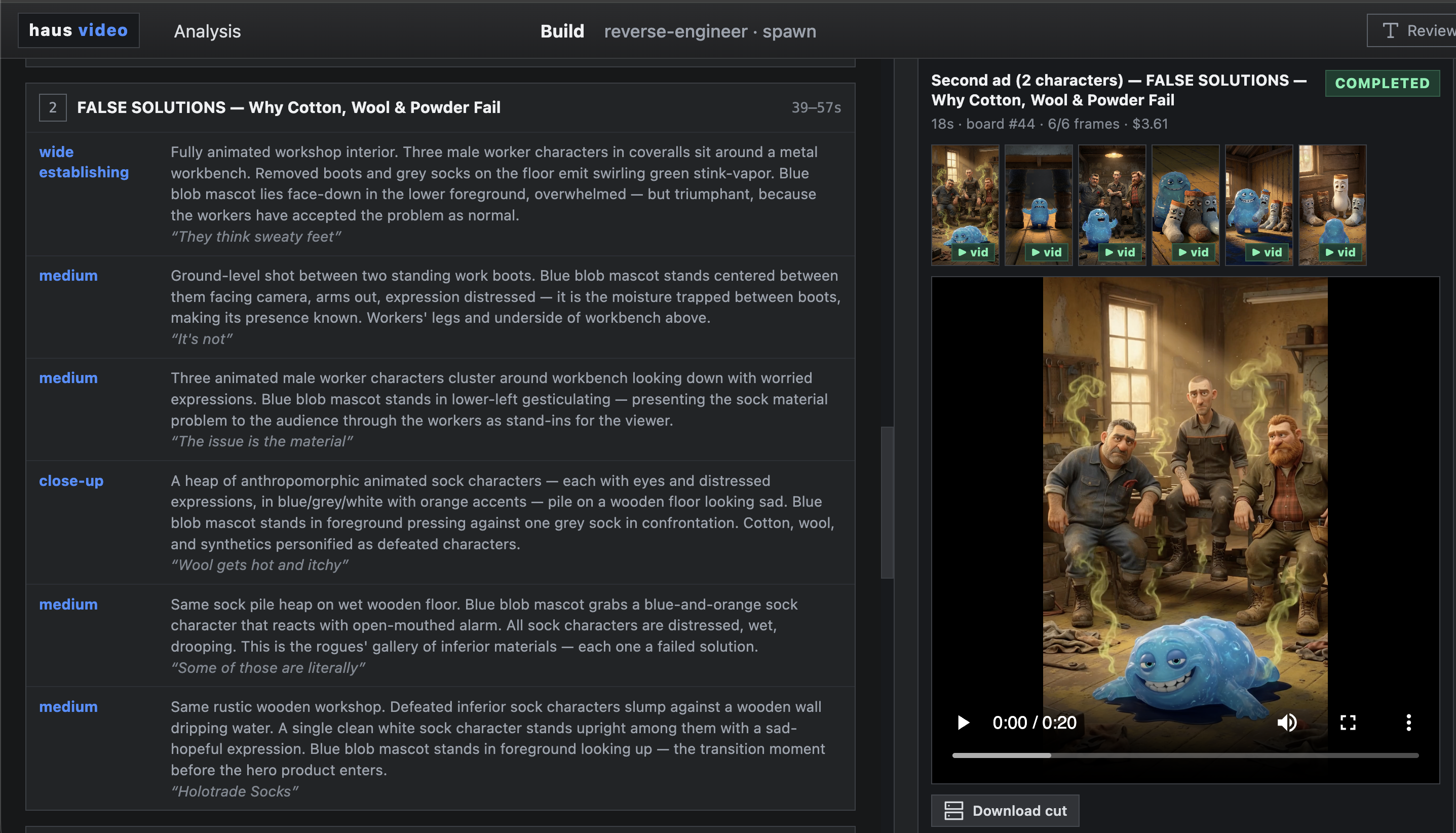
A video goes in. A structured brief comes out: plain-language description, visual style notes, lighting and lens specs, audio direction, voice tone, and a scene-by-scene narrative arc — ready to pass into a recreation brief or Ideation seed.
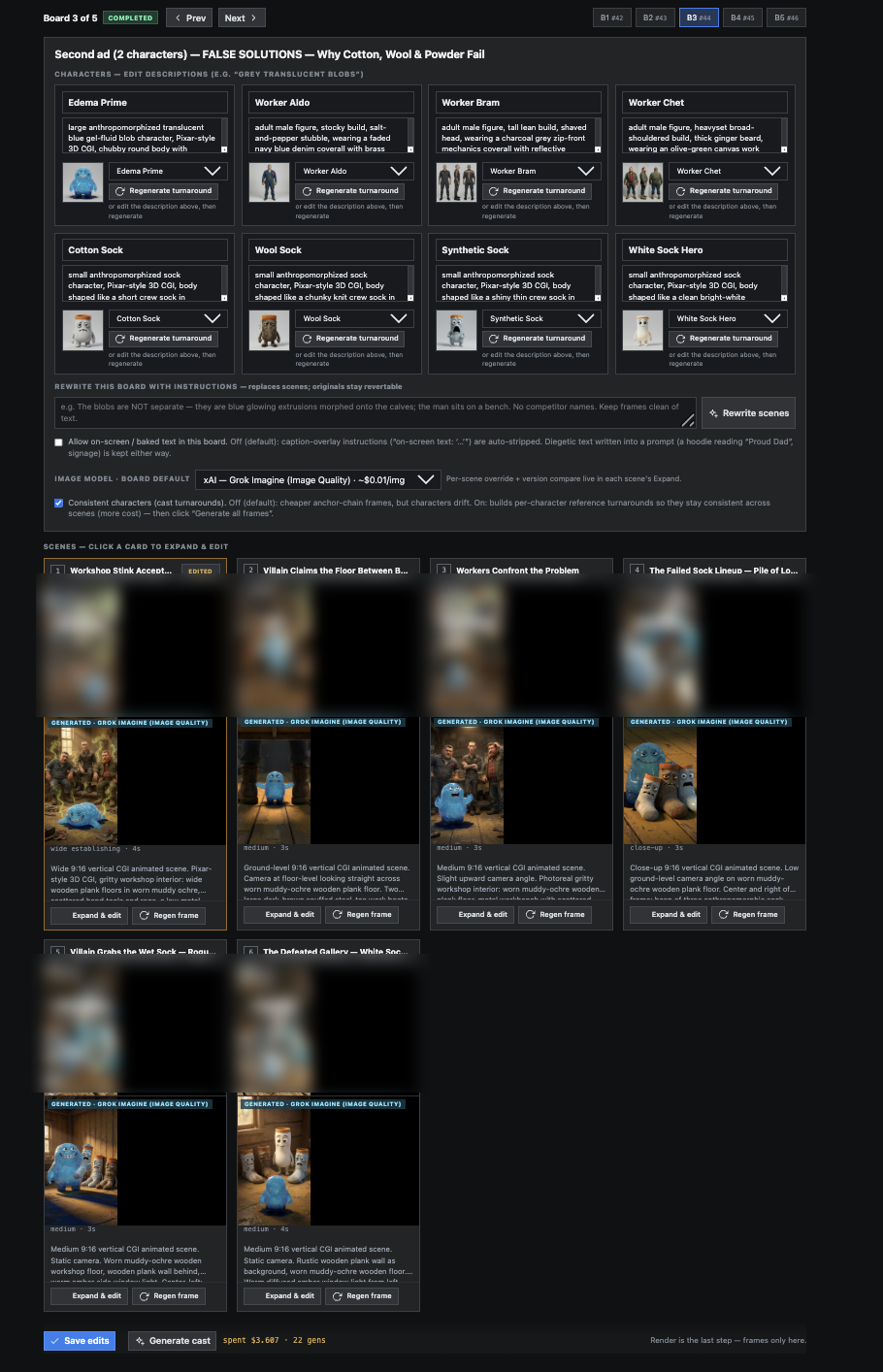
The analysis-seeded storyboard surfaces every character and environment as a discrete board. Cast, props, lighting rigs, and scene descriptions are all reviewable and editable before any AI generation runs.
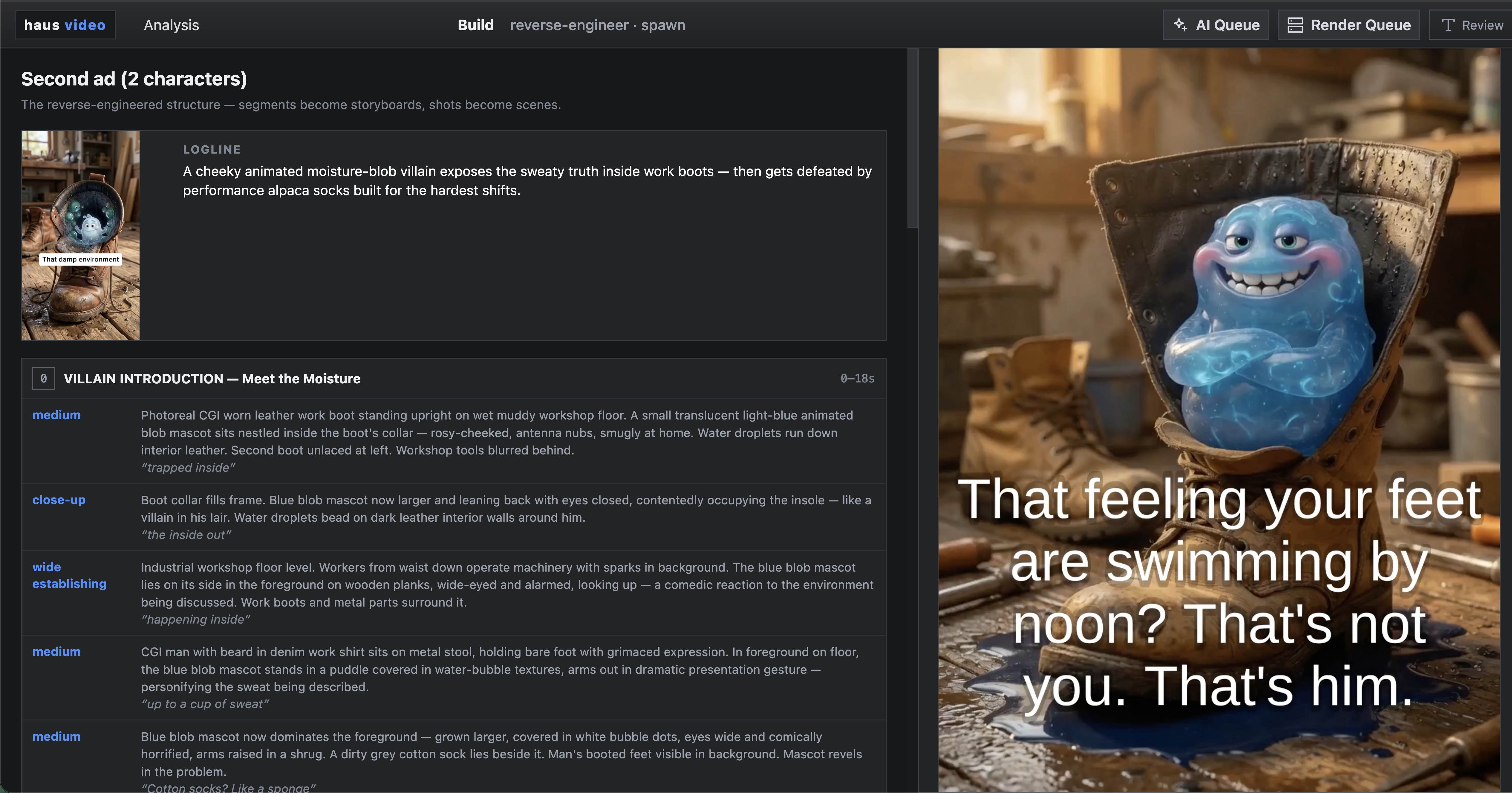
The extracted brief seeds a storyboard automatically. Each scene, character, and environment maps into boards that match the analyzed video's visual language and can be rendered, rescripted, or handed to Ideation as a style seed.
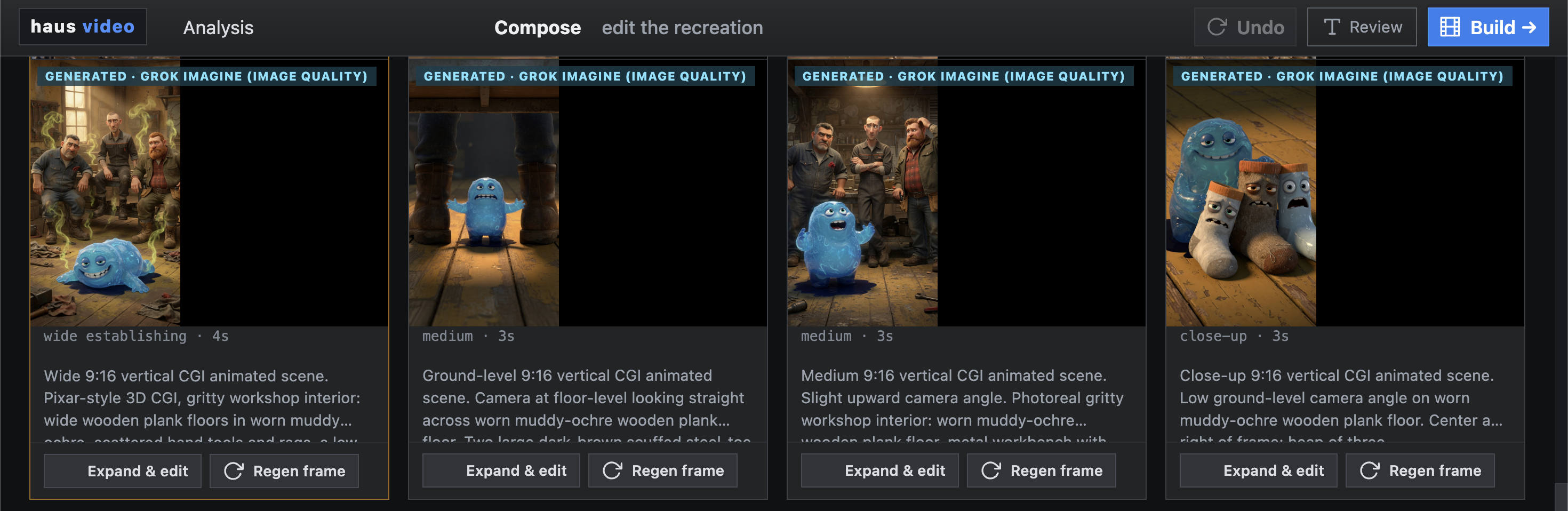
After analysis, the script can be rewritten before committing to a render. Change the hook, adjust the CTA, or swap the narrative arc — the visual style stays intact while the story is updated.
Style: Hybrid CGI animation + live-action product footage — clay/Pixar-style 3D characters and anatomical renders combined with photoreal product close-ups and composited graphic elements — Pixar short film meets medical explainer animation; clay-sculpture aesthetic with warm studio product photography.
Ideation is a creative development layer that sits before storyboard. Start from an Analysis result, a style reference, or a blank prompt. Seed a bare-bones brief, then refine the story, swap environments, and change characters — without committing any AI spend to a full render. When the brief is locked, launch it directly into the storyboard flow.
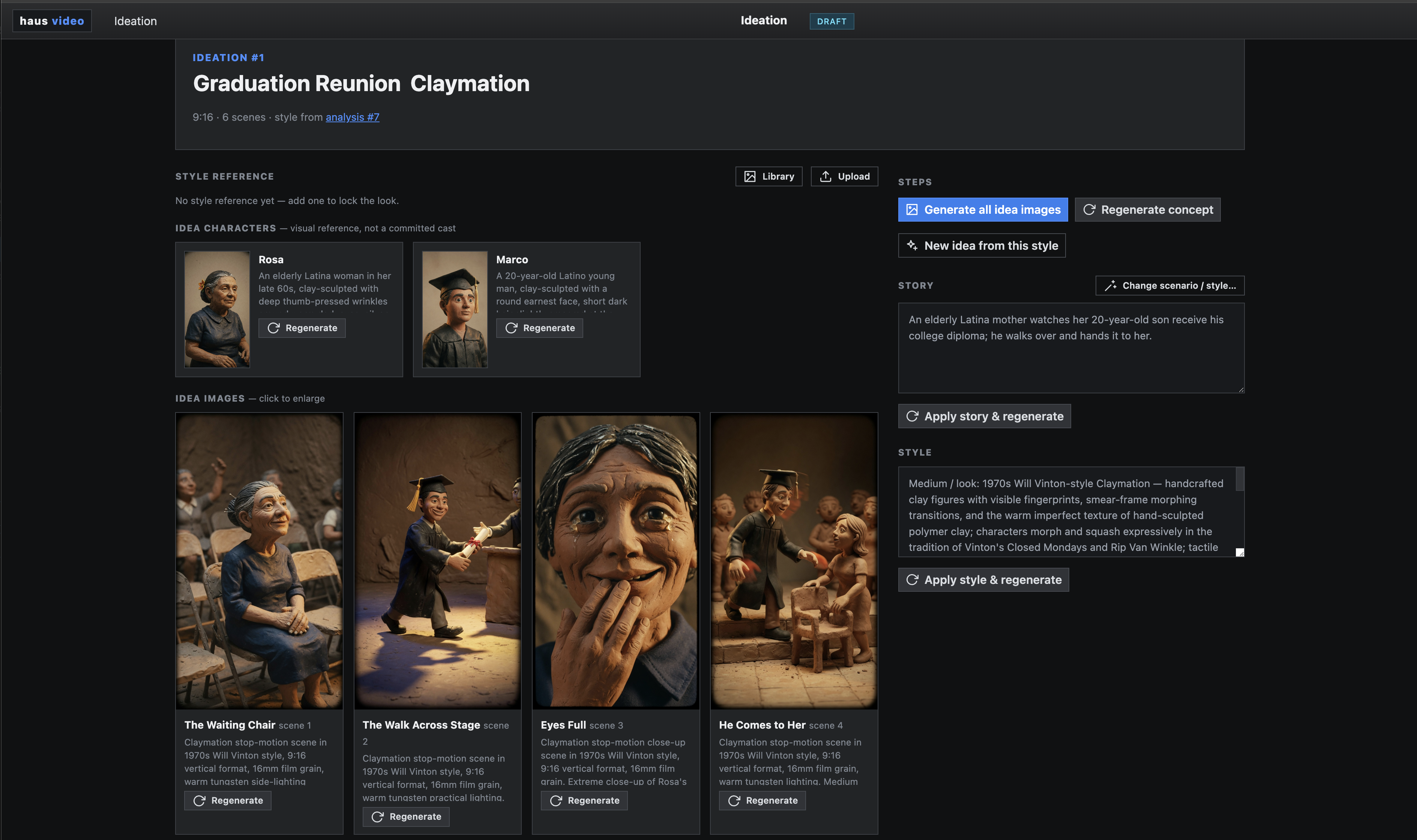
Ideation replaces the blank storyboard prompt with a structured creative workspace. Story and style are decoupled: swap the narrative without touching the visual language, or change the style reference while keeping the same plot. Each combination is reviewable as a brief before any render starts.
Analyzed a German shoe company ad built in a 1970s Will Vinton claymation style. Analysis Mode extracted the visual language. Ideation seeded it into a brief, then iterated through three story versions before locking the final: "An elderly Latina mother watches her 20-year-old son receive his college diploma; he walks over and hands it to her."
Medium / look: 1970s Will Vinton-style Claymation — handcrafted clay figures with visible fingerprints, smear-frame morphing transitions, and the warm imperfect texture of hand-sculpted polymer clay; characters morph and squash expressively in the tradition of Vinton's Closed Mondays and Rip Van Winkle; tactile clay environments with rough-thumbed surfaces, visible armature weight, and analog stop-motion charm.
Lighting: Warm tungsten practical lighting casting soft directional shadows across clay surfaces, highlighting texture and depth; golden side-lighting that emphasizes the handmade dimensionality of sculpted faces and fabric folds; no digital glows — all warmth comes from physical light sources on physical sets.
Lens: 16mm film grain aesthetic — slightly soft focus with natural vignetting; medium shots for character expression; slow zooms for emotional payoff; close-ups that reveal the beautiful imperfection of clay skin and fingerprint texture.
Tone: nostalgic, handcrafted, warmly humanistic, emotionally resonant, analog.
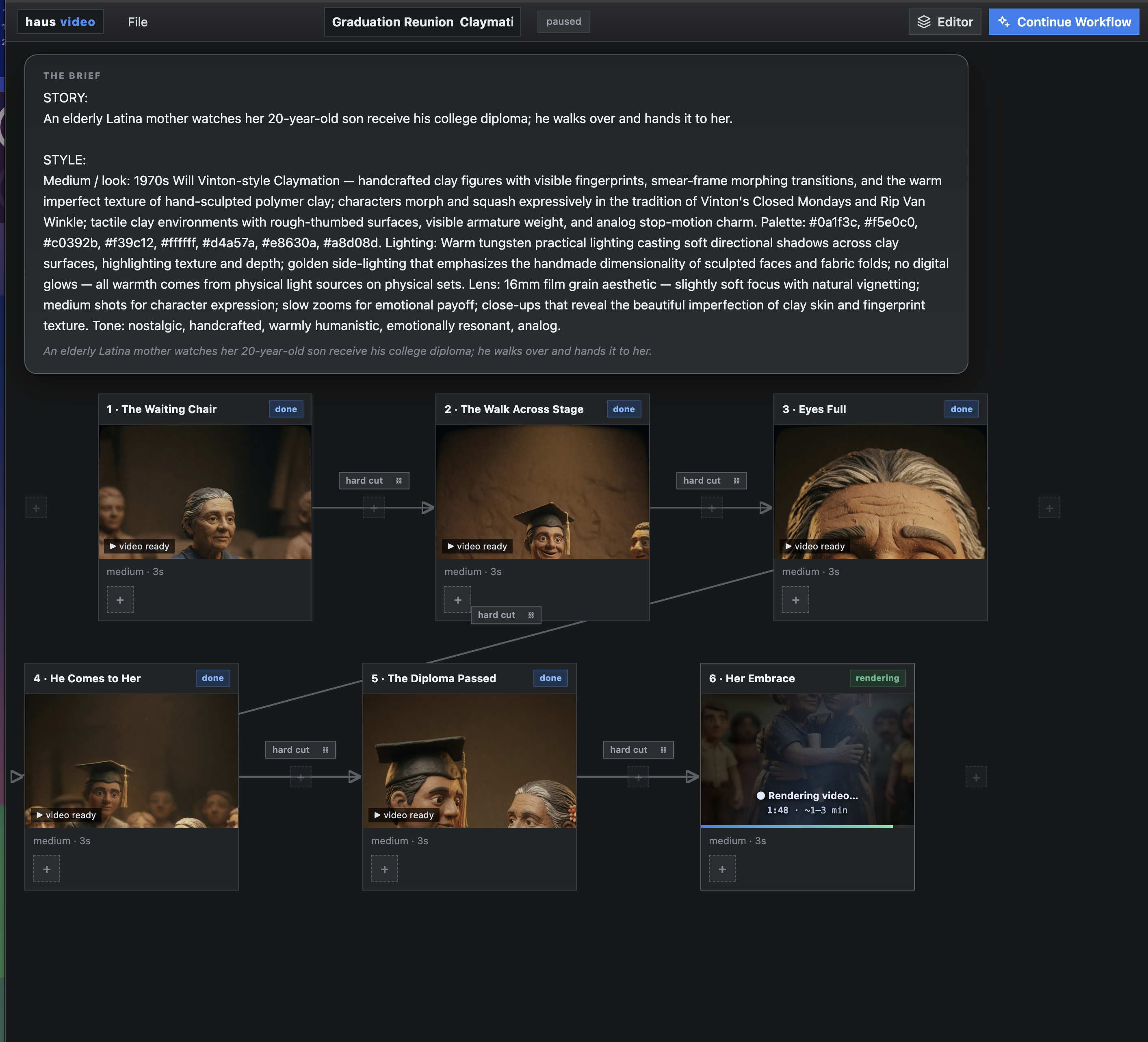
After three story iterations with the same claymation style, the locked brief launches directly into storyboard. Six scenes — The Waiting Chair, The Walk Across Stage, Eyes Full, He Comes to Her, The Diploma Passed, Her Embrace — each with matched character and environment prompts drawn from the original analysis.
The finished render from the Ideation-seeded brief: 1970s Will Vinton-style claymation, six scenes, locked after three story iterations. The style came from analysis; the story came from ideation.
A 1:30 video produced entirely through the Ideation flow — 9 scenes with full narration and captions. Brief seeded in Ideation, iterated before any render spend, then handed directly to storyboard for final output.