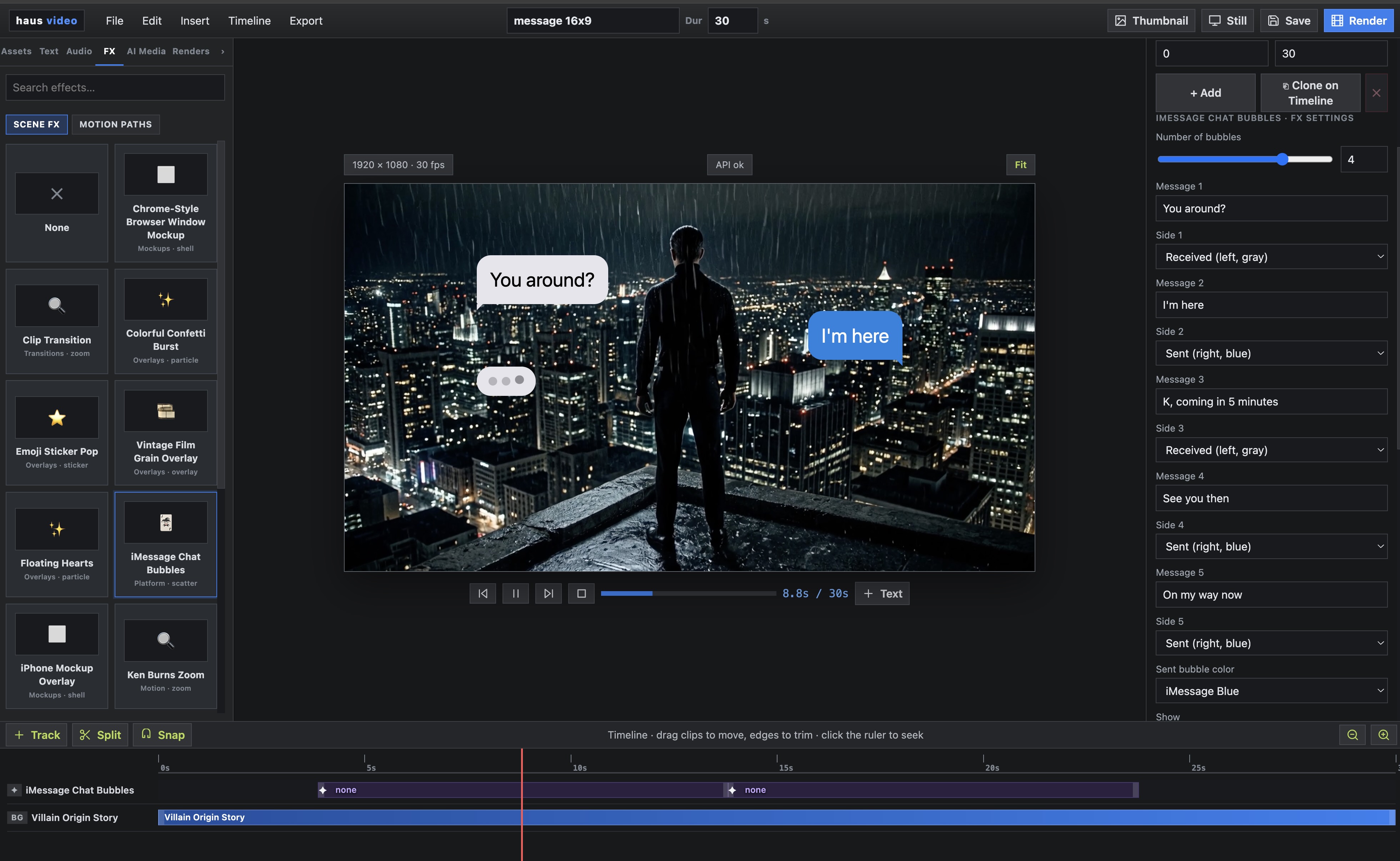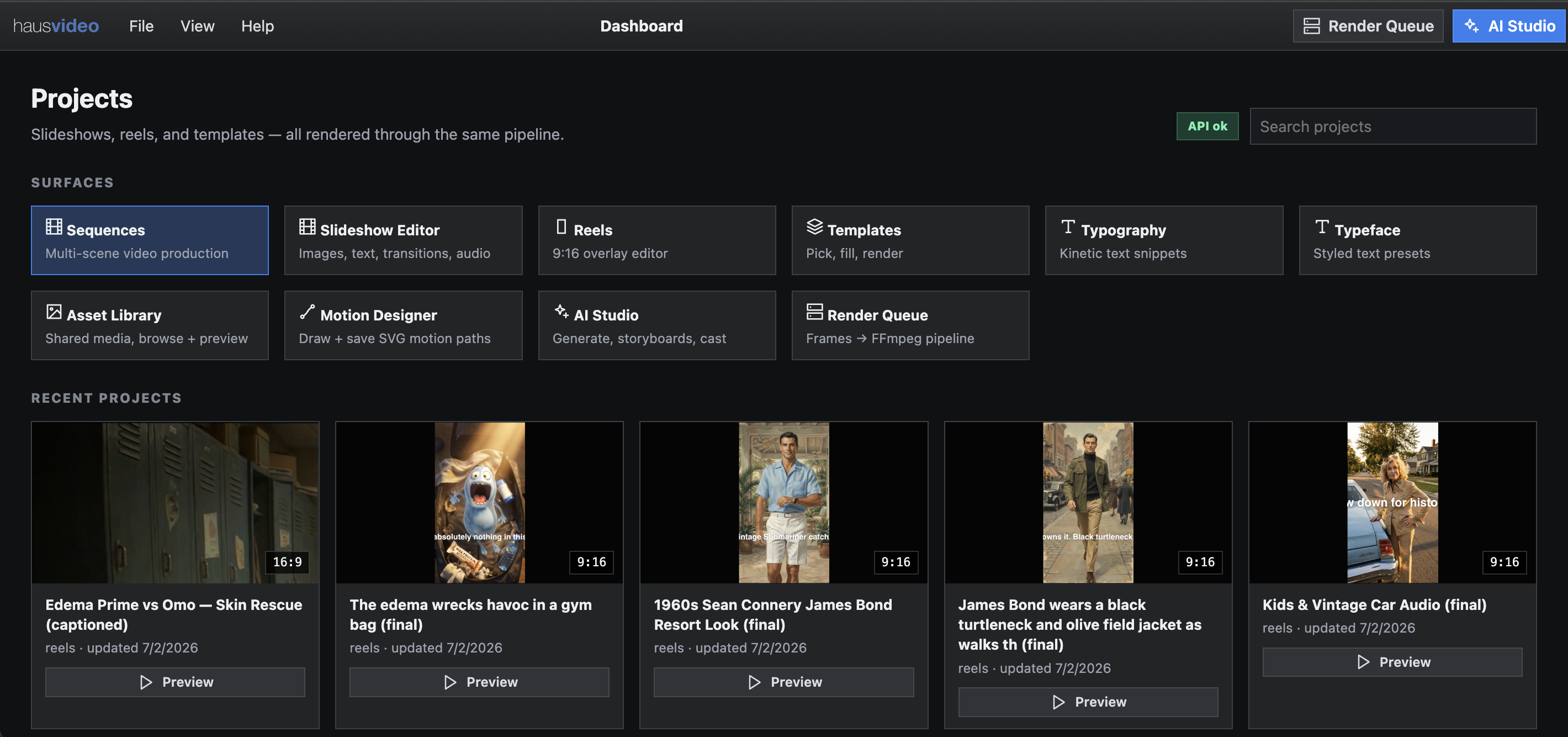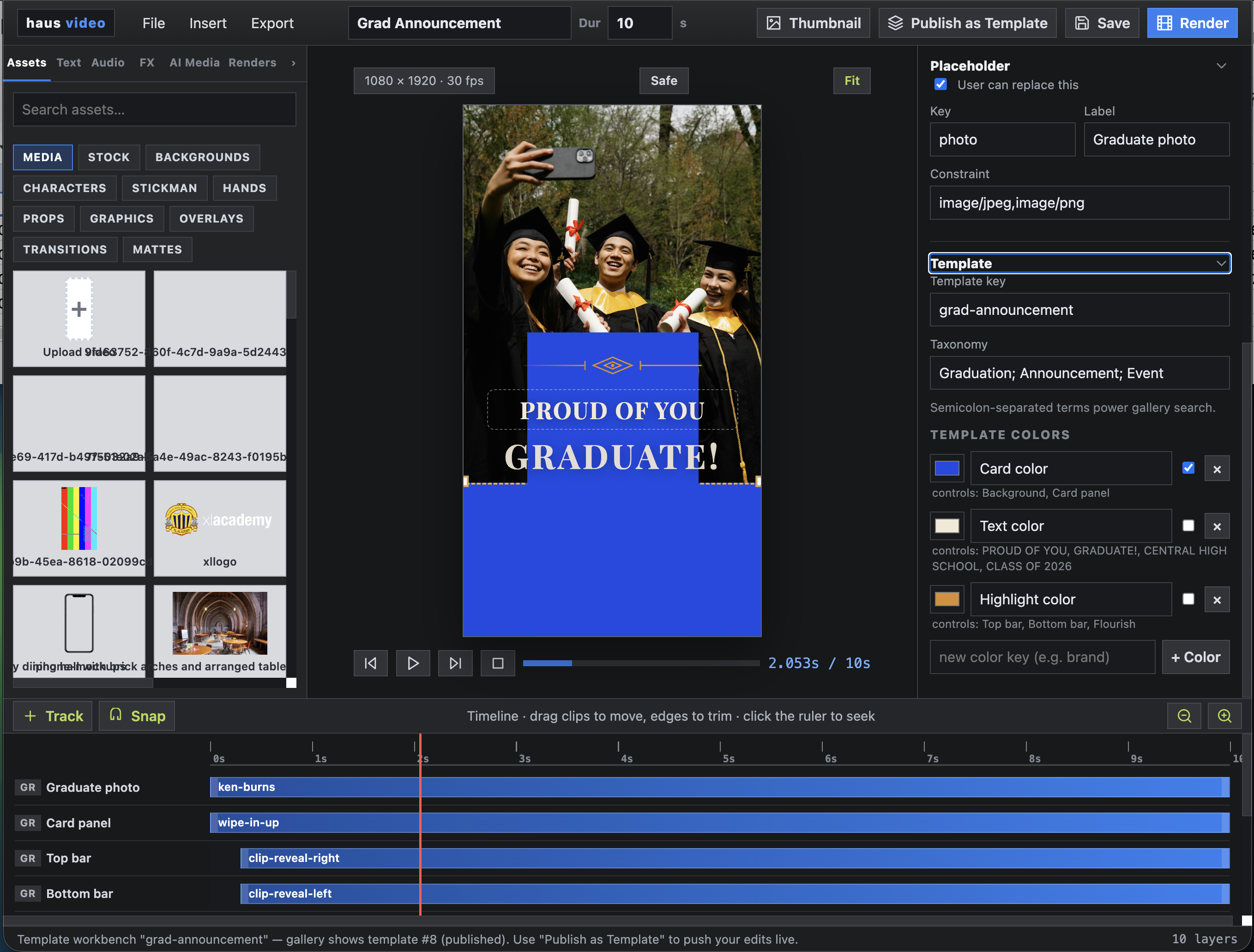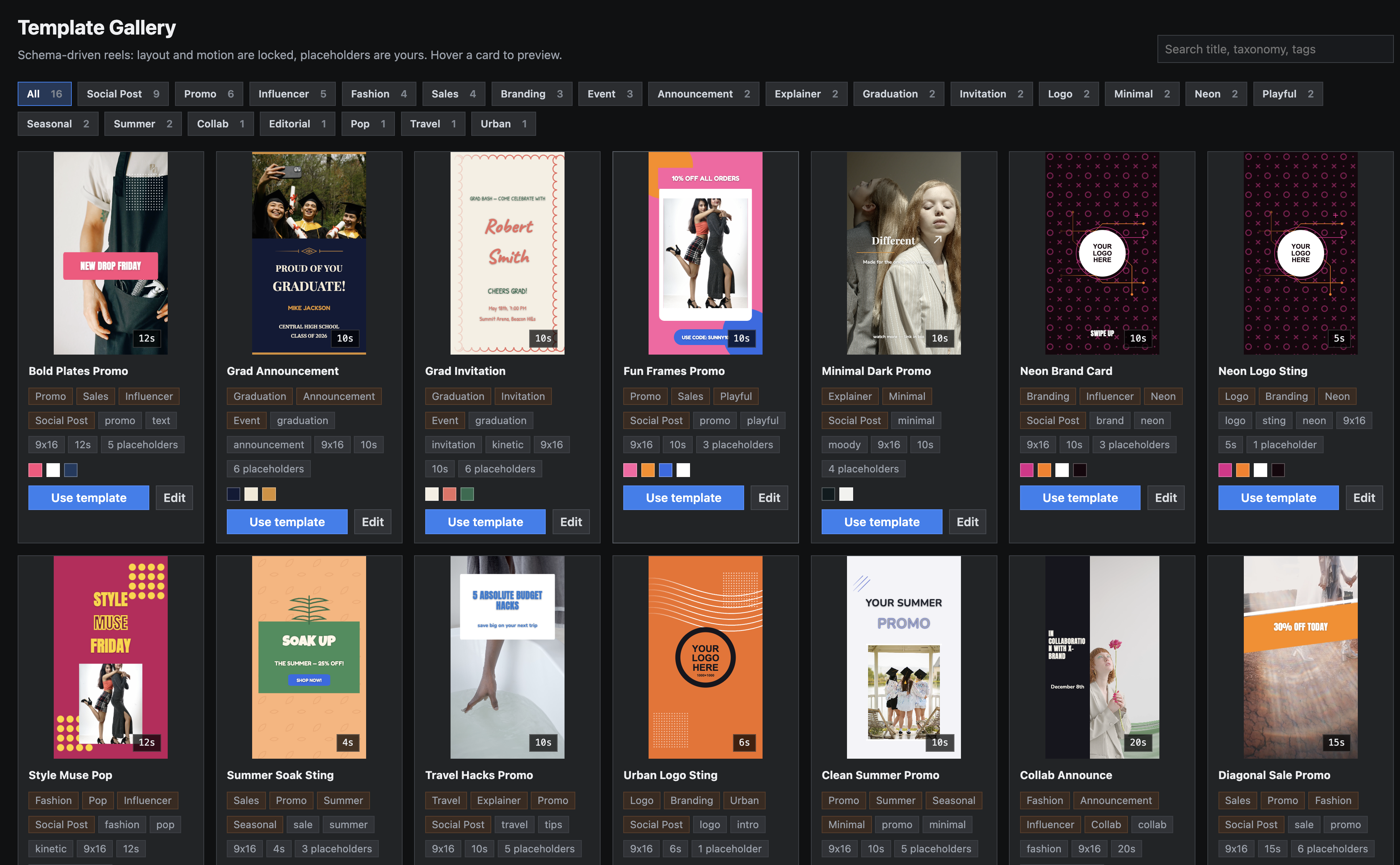
Online video platform • motion graphics authoring • AI Studio

Production controls first. AI layered on top.

Most AI video tools start as generators and try to add production controls afterward. Haus Video is built the other way around. The platform already exists as a motion graphics authoring and video system — AI Studio is the layer added on top of that foundation. That means the storyboard, cast library, timeline, audio tools, and caption authoring were production-grade before AI entered the picture. It now supports three ways of working: Autopilot for one-shot generation, review at stage for inspecting and correcting the pipeline as it runs, and Guided (Map Mode) for building or reshaping a story as a visual scene diagram — all inside the same authoring environment competitors would have to rebuild from scratch.

Workflows
Auto, mapped, or reviewed at each stage
Start with one-shot generation, move into Map Mode, or pause to correct scenes before final render.
Auto Mapped Review
haus video AI Studio home screen with storyboard, cast, audio, and caption modules.
Audio + captions
Voice over, soundtrack, and caption sync
Generate or curate audio, send voice timing into captions, then style typography as a finishing layer.
Voice Music Type
Motion tools
Integrated with haus video authoring
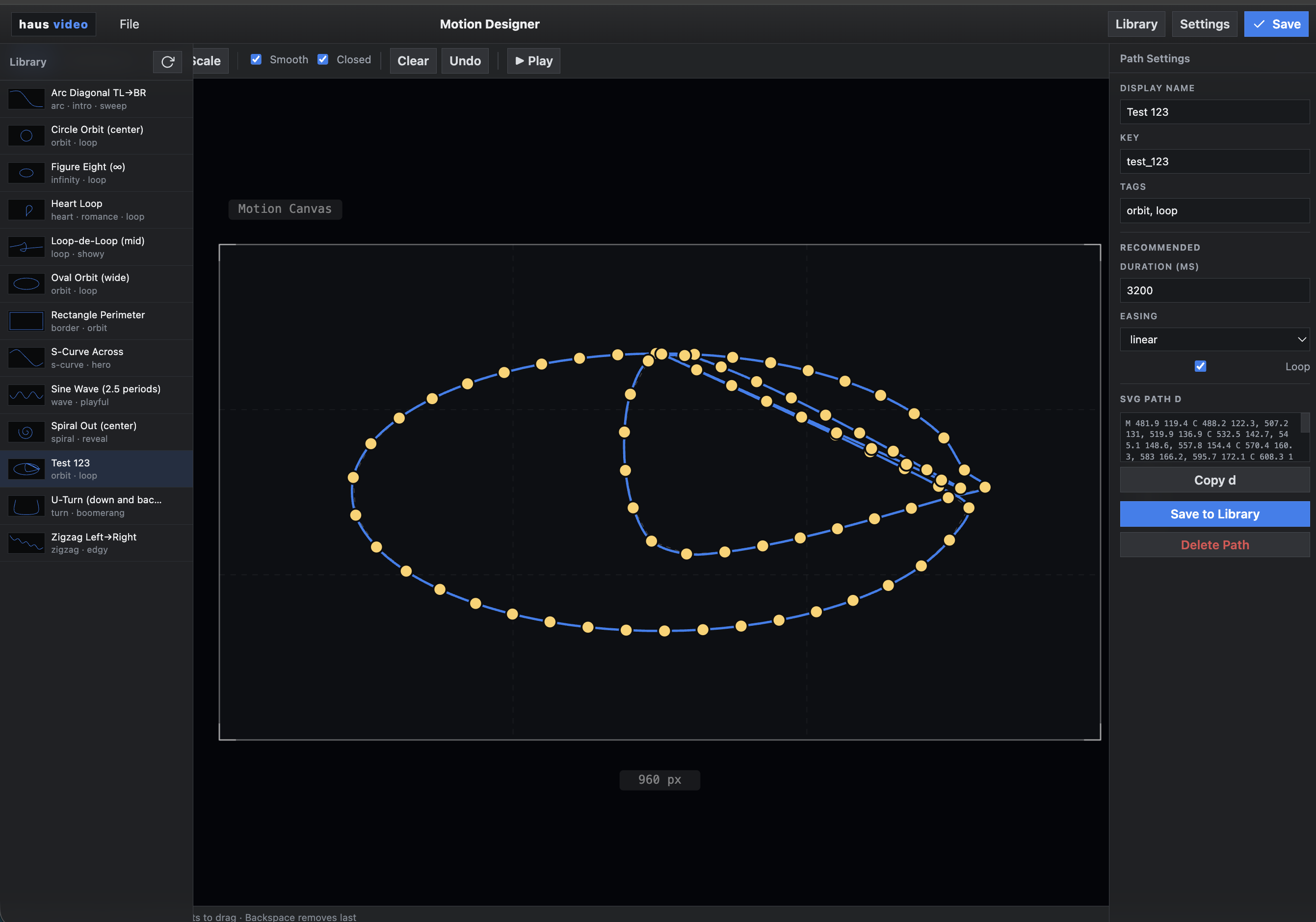
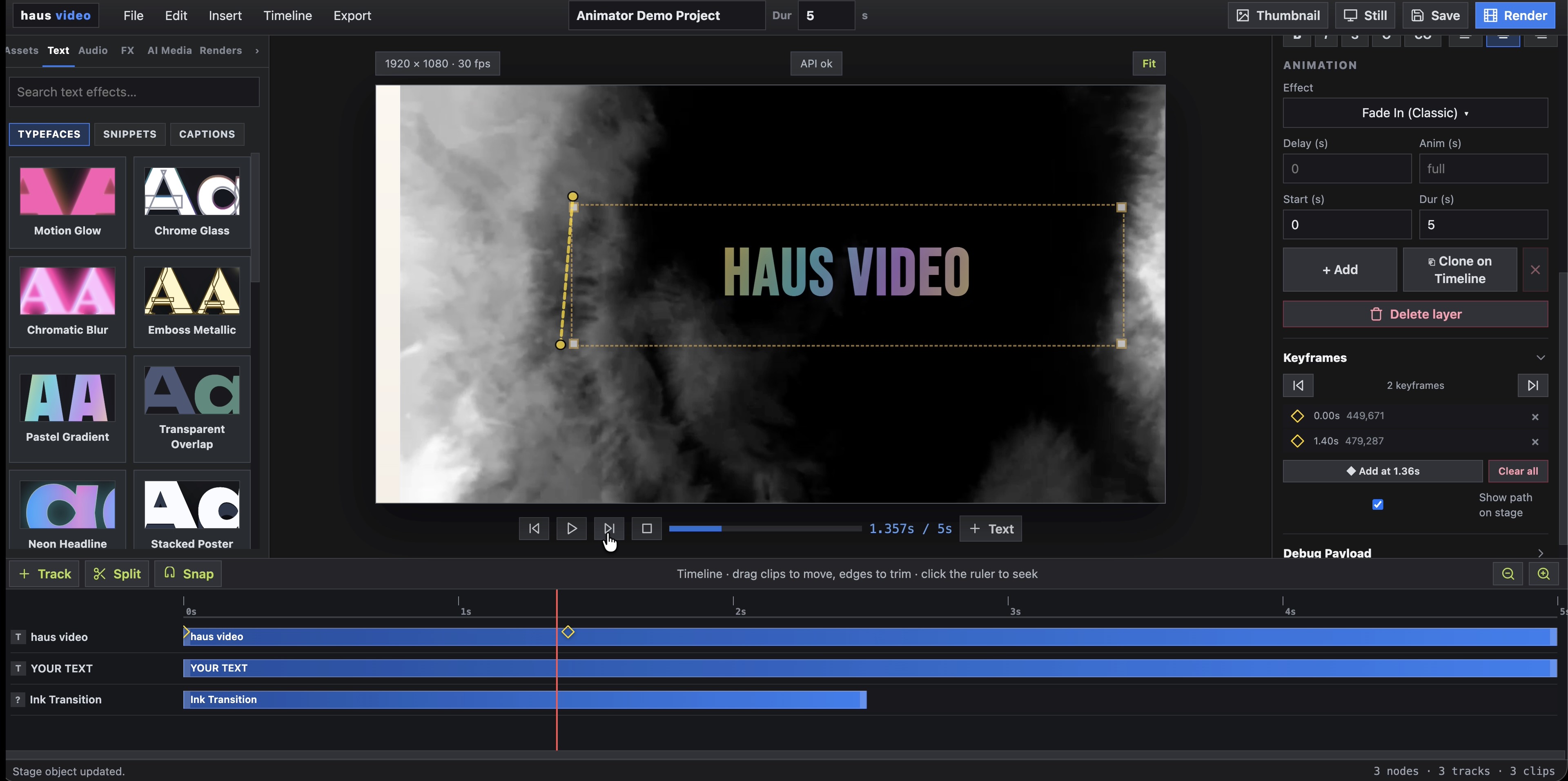
AI outputs flow back into the platform's motion graphics, layout, timeline, and publishing tools.
Motion Layout Reels
Overview

AI Studio is built on top of a platform that already existed. That's the difference.

Why that's hard to replicate Competitors are AI generators trying to bolt on production controls. Haus Video is a production platform that added AI. The motion graphics authoring, audio tools, and caption layer were already here. Cast management was built specifically because testing revealed it was essential for visual consistency across scenes — it is not a feature added for appearances, it is a solution to a real production problem. Correction, reuse, and scale are native to the architecture, not retrofitted.
01

Storyboard control at every stage

Autopilot, Review, and Guided Map Mode let operators choose how much control they want. Scenes resolve into editable units with prompts, references, and history attached — so correction targets the wrong scene, not the whole board.

02

Audio and captions are part of the same flow

Once the board is shaped, users can generate a soundtrack, produce voice over with models like ElevenLabs, and send that timing directly into captions — with typography controls as a finishing layer, not a separate tool.

03

Output feeds back into haus video motion tools

AI-generated visuals, audio, and captions are designed to flow back into the platform's motion graphics, layout, and timeline — so reels are finished inside the same authoring environment, not exported into a separate editor.

Modes

AI Studio now has three operating modes, not one.

The useful framing is no longer "generate a storyboard." It is how much control the operator wants at the moment the story takes shape.

01

Autopilot

Start with a one-shot brief and let the runner seed the board automatically with scenes, prompts, references, and render jobs.

02

Review At Stage

Pause inside the pipeline to inspect generated scenes, regenerate reference frames, compare history, and correct weak outputs before final stitch.

03

Guided / Map Mode

Turn the story into a visual diagram map, review blank seeded scenes first, then add, remove, or redirect scenes as if you were planning a virtual re-shoot.

Flow

Autopilot is still a real multi-stage runner underneath.

Under the hood, even the fastest mode is staged. Create the script. Create or reuse characters. Create scene scripts. Create reference frames. Render image and video jobs. Then stitch the finished sequence. That is what makes correction, reuse, guided editing, and debugging possible.

1
Create the script The story starts as a brief, then a script_gen step turns it into structured JSON with title, logline, characters, and scenes instead of leaving it as one free-form prompt.
2
Resolve recurring cast with cast_gen The runner can look up an existing cast member first, or create a new one as a cast_gen job when none exists so that character becomes reusable in future boards.
3
Create scene scripts Each scene gets its own shot type, motion, transition, duration, image prompt, video prompt, and continuity rule so the board can be edited at scene level.
4
Create reference frames Reference frames anchor the look of every scene and become continuity inputs for later image and video generation.
5
Render jobs per stage The runner exposes image_gen and video_gen jobs individually, which makes failures and retries visible.
6
Stitch the final cut Once scenes are approved, a stitch job compiles them into a coherent output ready for review, publish, or another pass.
Storyboard stage rail showing script, reference frames, scenes, compile and publish.
Stage rail

The UI already reflects the pipeline

Script, reference frames, scene steps, compile, and publish are represented directly in the board, which makes the one-shot runner inspectable instead of magical.

Guided

Guided (Map Mode) turns the storyboard into a visual re-shoot tool.

After the prompt is written, Guided Mode can create blank scenes for review before the user commits to final render. From there the board behaves like a flow diagram: generate reference frames, add more context, insert new scenes, delete weak ones, and keep the story structure visible while the prompts evolve.

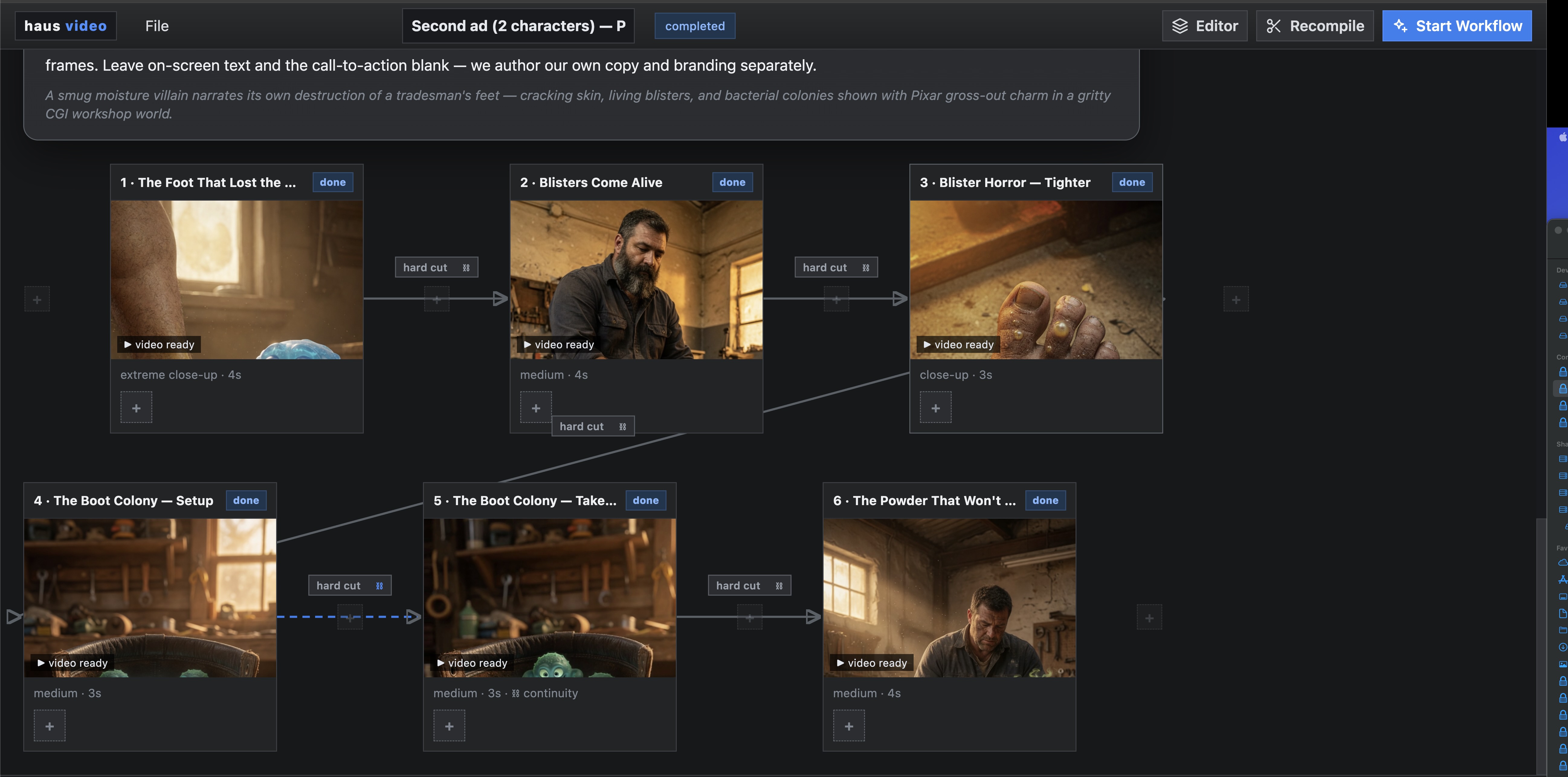
Guided Map Mode showing a scene diagram with connected beats and insert points between scenes.
Visual map

The story becomes a diagram, not a hidden list

Guided Mode lays out scenes as connected blocks with transitions between them, so authors can reason about the cut, spot gaps, and insert new beats before render.

Scene editor showing reference uploads, frame history, and prompt revision for a targeted re-shoot.
Virtual re-shoot

Wrong subject? Upload references and regenerate the frame

A prompt like "kids zooming their bikes past a vintage car" may randomly land on the wrong car. If the real subject should be a 1960s Fiat 500 or a 1976 Monte Carlo instead of a Chevy Bel Air, the operator can upload additional references, pin them to the scene, regenerate, and compare history before rendering video.

Guided scene editor showing auto-write to match the story tone, scene prompt controls, and keyframe history.
Scene redits

New scenes can inherit tone automatically

When a new scene is inserted after the initial seed pass, the board can auto-write prompts that match the tone of the surrounding sequence: atmosphere, visual style, location logic, and the existing cast language.

Why it matters

Guided mode is closer to planning a re-shoot than rerolling a prompt

The operator is not just asking for another output. They are steering subject accuracy, scene order, tone continuity, and shot intent with visible references and version history attached to each scene.

Proof

Controls for correction, guided editing, and continuity already exist.

The current screens show the core claim clearly: this is not a black-box generator. It is a board where users can inspect frames, tune scene prompts, compare outputs, reshape scenes, and reuse stable cast assets.

Storyboard creation screen with script model and video model selectors.
Autopilot entry

Fast generation does not hide the board

The board setup exposes the one-shot as an editable production document rather than a single generate button, which is the right foundation for scene-level control.

Storyboard detail showing scene prompts, motion prompts, and final cut.
Guided scene repair

Re-prompt the scene, not the whole story

Scene cards keep image prompts and motion prompts editable separately so camera direction, motion energy, and transition behavior can be corrected in place.

Frames and references panel with keyframes and continuity frames.
Continuity inputs

Reference frames stay attached to the board

Continuity frames from earlier scenes can be carried forward so the next shot begins from visual memory instead of starting cold, and uploaded subject references can force a re-shoot toward the right prop, vehicle, or location.

Cast member detail page with turnaround references, variants, and canonical description.
Reusable cast

Cast behaves like a reusable asset library

Cast is broader than characters. It can include people, animals, vehicles, places, and objects, each with reusable descriptions and variants. In this example, the cat inspector already carries multiple variants, including astronaut and astronaut with helmet off.

Comparison

Two cuts, side by side, show why the workflow needs scene-level correction.

The provided forest-and-crater example is useful because the second shot needs a clean directional reset. The bad version uses the last frame of the previous video as a reference, which makes the kids appear to bicycle backward. The corrected version uses a clear prompt that understands they are approaching the crater and makes a hard cut to a shot from behind. The important point is that the system lets the operator compare, re-cut, and retry.

Band transition cut

Scene 2 drifts off the intended move

This is the failure mode the workflow needs to expose: using the last frame as the reference flips the implied direction, so the kids appear to bicycle backward instead of approaching the crater.

Off result
Re-cut + POV correction

Scene 2 keeps the camera behind the riders

A stronger pass uses a clear prompt about approach direction and hard-cuts to a view from behind the riders, so the crater reveal reads as forward motion instead of reversal.

More believable
Re-cut scenes A board should let the operator cut a scene again without regenerating unrelated scenes that already work.
Re-prompt camera motion The fix is not always new imagery. Sometimes it is a better camera instruction so motion progresses more naturally.
Compare outputs directly Side-by-side review makes it obvious whether a rerun actually improved continuity, POV, and pacing.
Audio + Captions

Audio, voice over, and captions are finishing layers after the board is shaped.

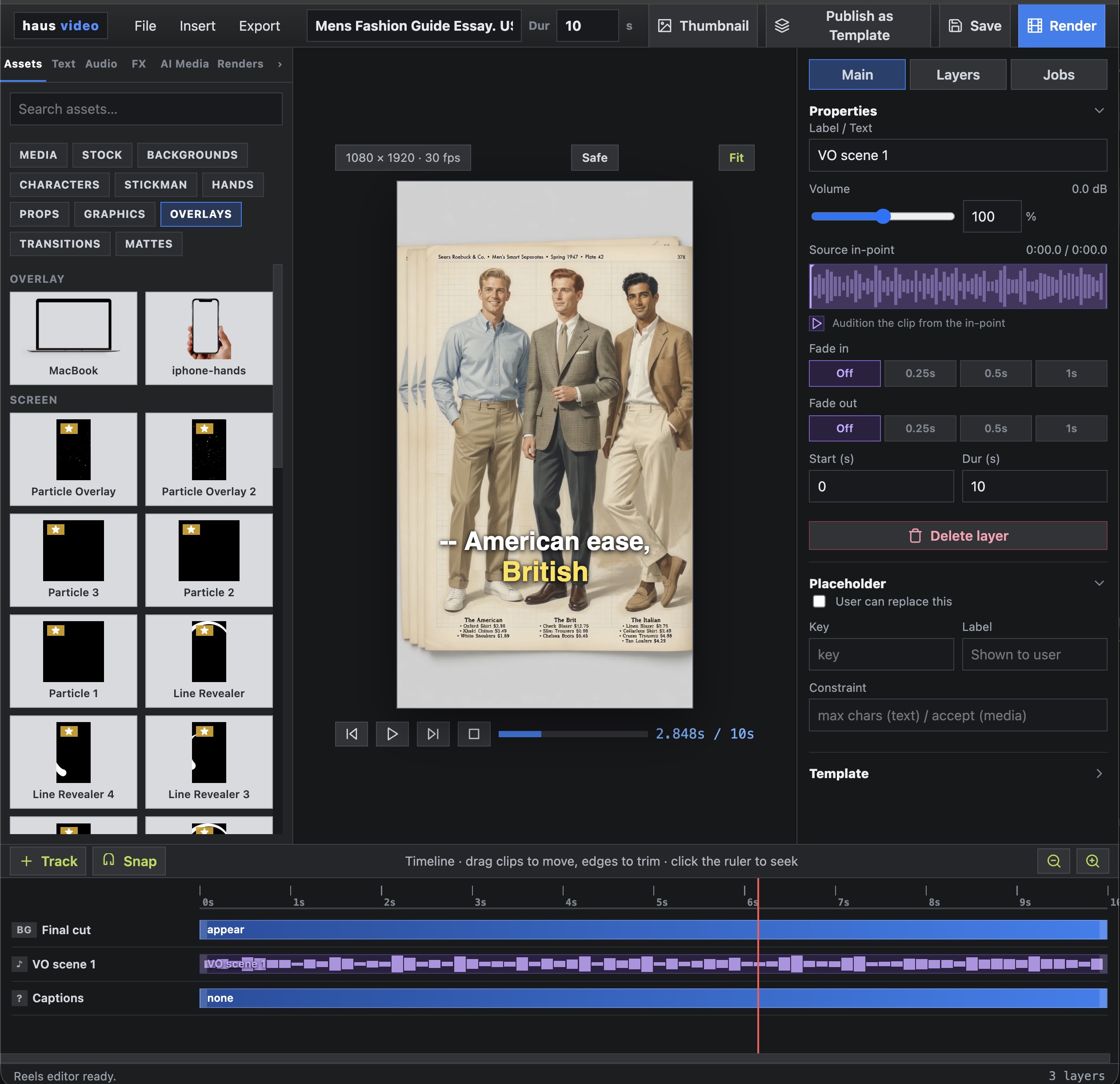
Once the storyboard, cast, references, and scene-level corrections are in place, audio becomes part of the same production flow. Users can create a soundtrack for a scene, generate background music, or produce voice over with different providers and voice models, including services like ElevenLabs. Captions can then sync to that voice over, or work as a standalone authoring surface.

Audio management screen showing a generated music track, metadata fields, playback controls, and timeline actions.
AI audio

Music and voice over become editable assets

The audio surface can support user-created soundtrack ideas, AI-generated music beds, AI voice over, reusable metadata, mood tags, preview playback, and explicit send-to-project actions. The important product point is that audio becomes a managed asset, not a hidden side effect of the video render.

1
AI music Generate or curate scene soundtracks and background music by genre, mood, duration, tags, and prompt, then keep approved tracks available for reuse across storyboards.
2
AI voice over Create narration from storyboard text or an influenced script, choose from different voices and model providers such as ElevenLabs, preview the read, and attach the result to a scene or project timeline.
3
Send to captions The generated voice over produces text and timing that can be sent to captions, where the user controls sync, display level, text animation style — karaoke, typewriter, fades, and more — color, font, size, and position.
4
Available to Haus Video The finished audio, voice over, and caption assets are available across the haus video platform — attached to scenes, reused across storyboards, and baked into the final render.
Caption editor showing voiceover source selection, line display mode, karaoke pulse motion, font controls, and preview canvas.
CAPTION AUTHORING

Captions should be controlled, repeatable, and styleable

The caption tool can ingest text directly or receive voice over text and timing from the audio workflow. From there the operator chooses block, phrase, line, or word display, motion graphics text animations — karaoke, typewriter, fades, and more — plus aspect ratio, legibility settings, typography, and placement. Captioning can be synced to voice over or used as a standalone authoring tool.

Final rendered video asset with styled caption overlay — the finished output of the audio and caption workflow inside the haus video platform.
Final output

Captions as a rendered asset

The end result is a finished video asset inside the platform — motion graphics, AI-generated visuals, synchronized audio, and styled captions delivered as a single output. Everything authored in the caption tool is baked into the final render, ready for distribution or reuse across campaigns.

Use Case

API-driven

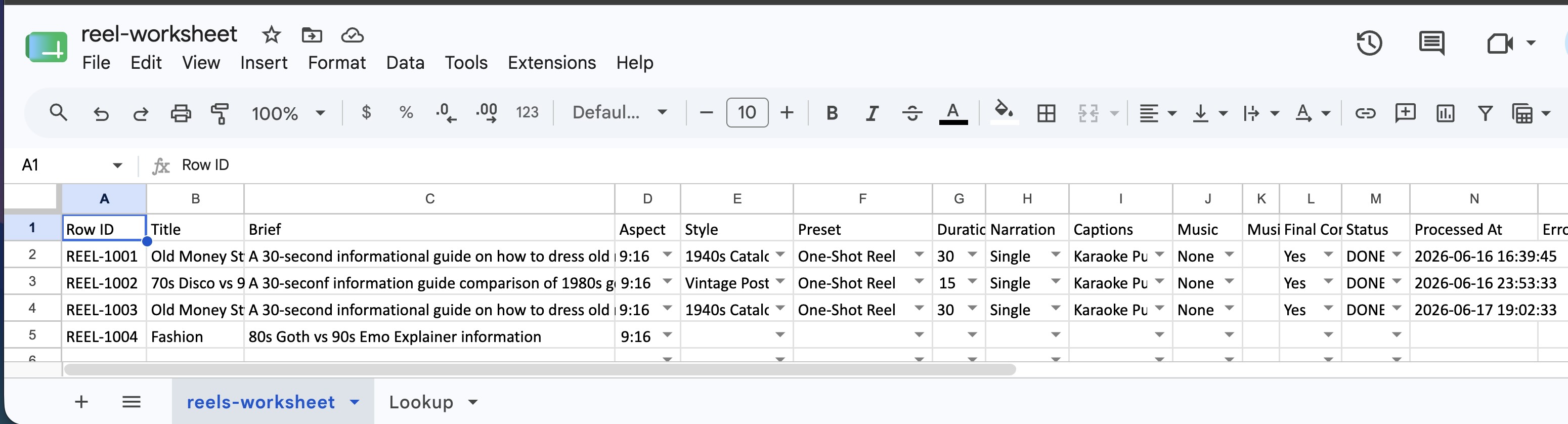
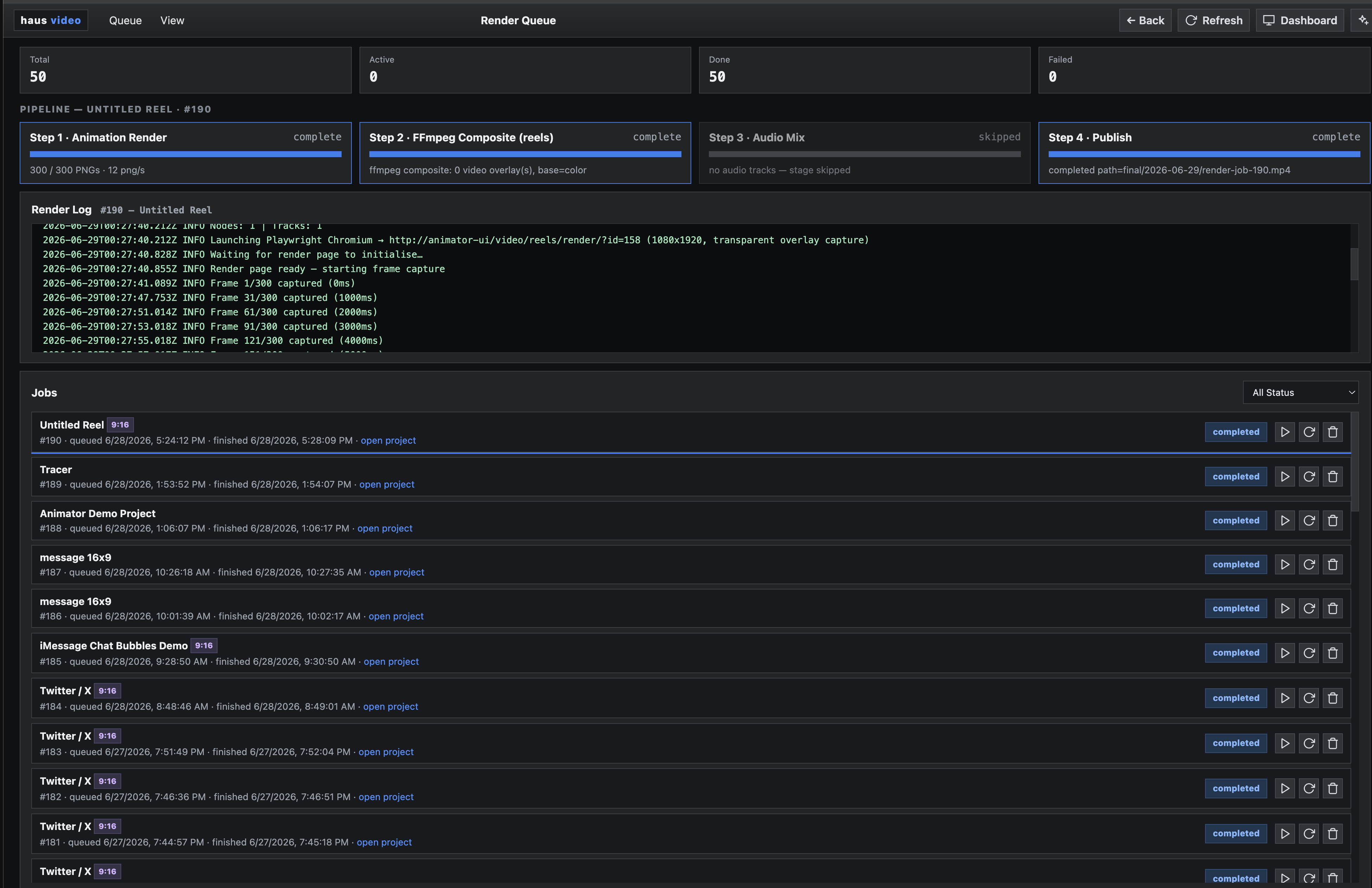
The product goal is to help users automate and create reels at scale. An API-driven workflow can turn a spreadsheet row, CMS record, Airtable entry, or app event into a finished short-form video package: motion, AI-generated visuals, audio, and motion graphics from the haus video platform.

Reels editor showing multiple generated short-form videos ready for review and output.
Automated output

One prompt source can fan out into complete reels

A single source row can define the brief, then trigger an automated storyboard run that produces many Instagram Reels without manually rebuilding each board in the editor.

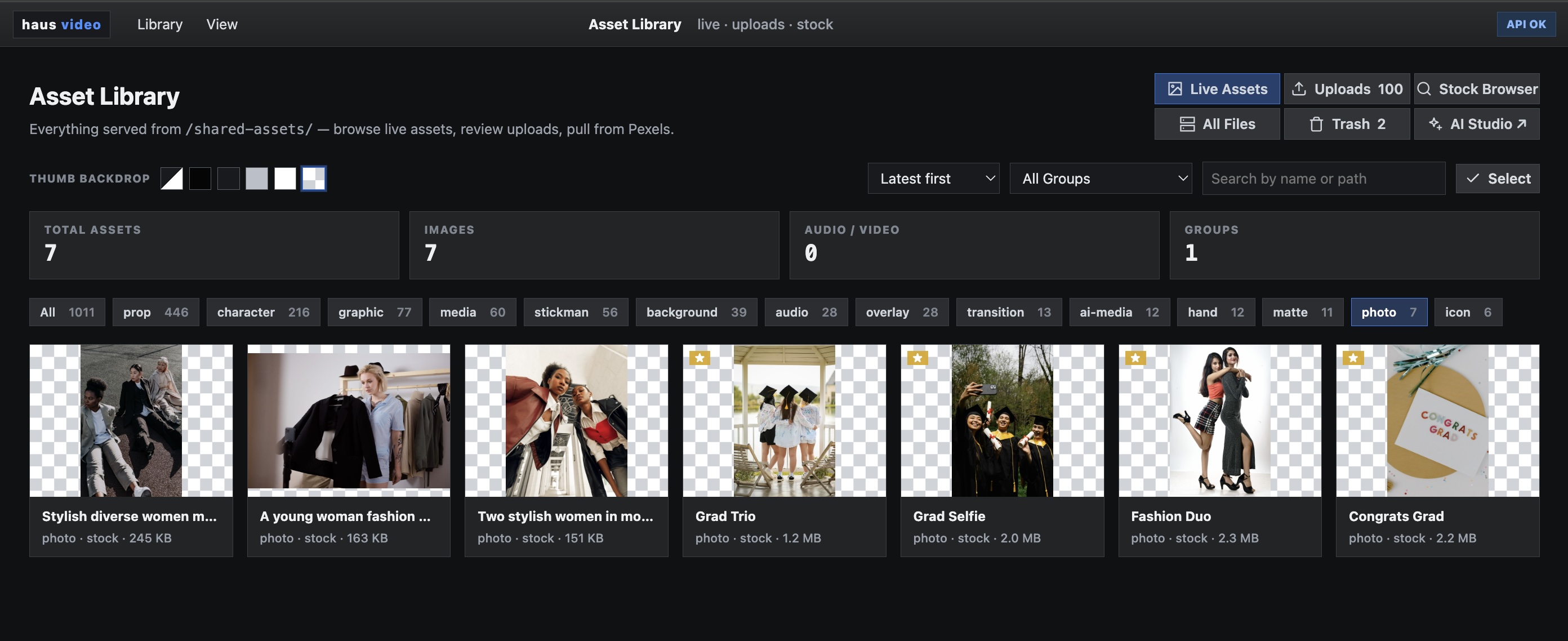
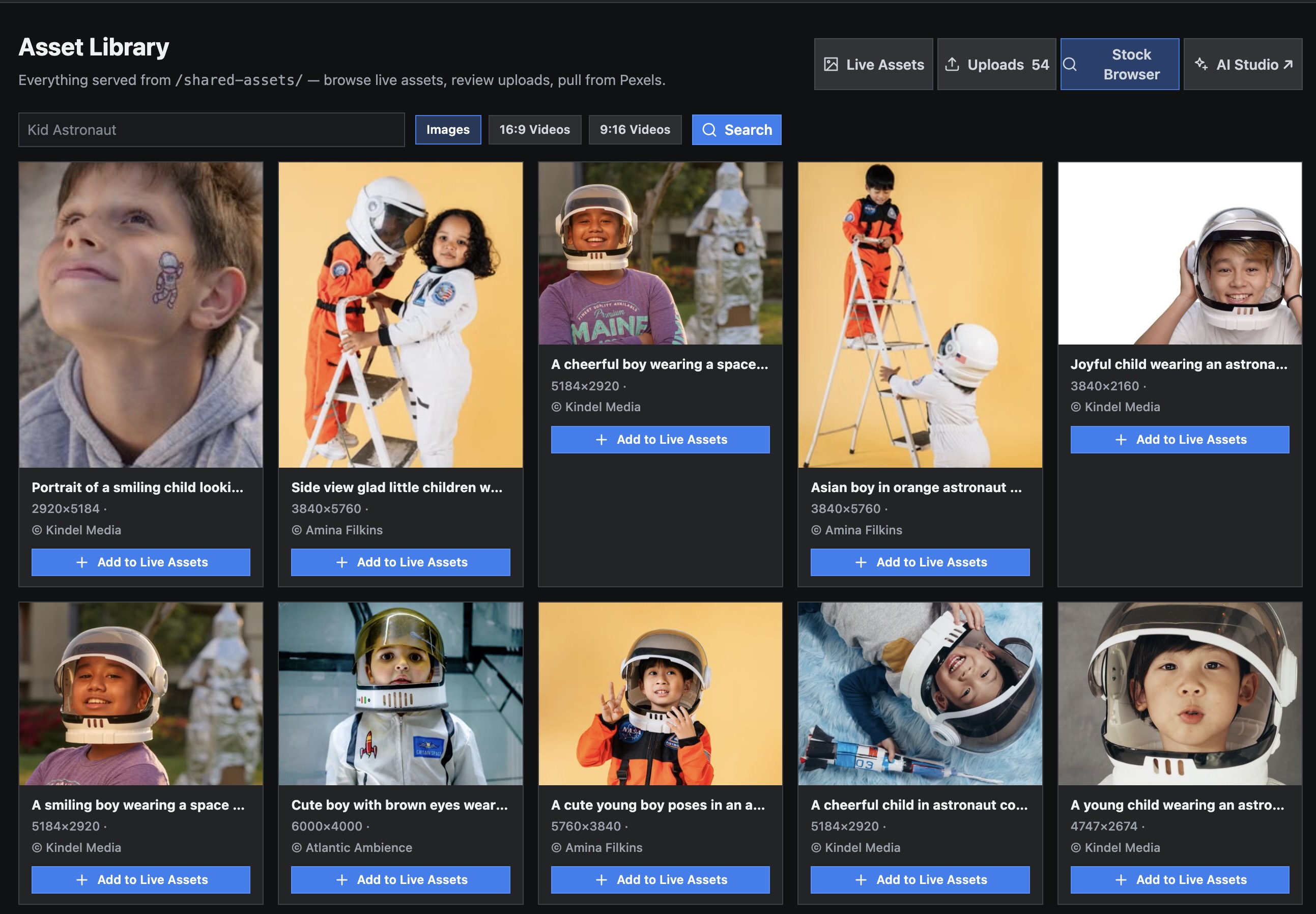
Stock media browser showing Pexels search results that can be pulled into the workflow.
Stock inputs

Automation can assemble the source material

Connectors to services like Google, OneDrive, Airtable, and other systems can pass a prompt into the pipeline, while stock-agency integrations can pull supporting art from places like Pexels to seed the run alongside generated visuals.

Reference image selection showing external images used as storyboard inputs.
Reference-image stage

Stock images can become reference frames automatically

Pulled stock art does not have to stay separate from the storyboard. It can be injected as reference-image input so the generated scenes inherit a target mood, composition, or subject cue.

Pipeline shape

Motion, visuals, audio, and graphics in one run

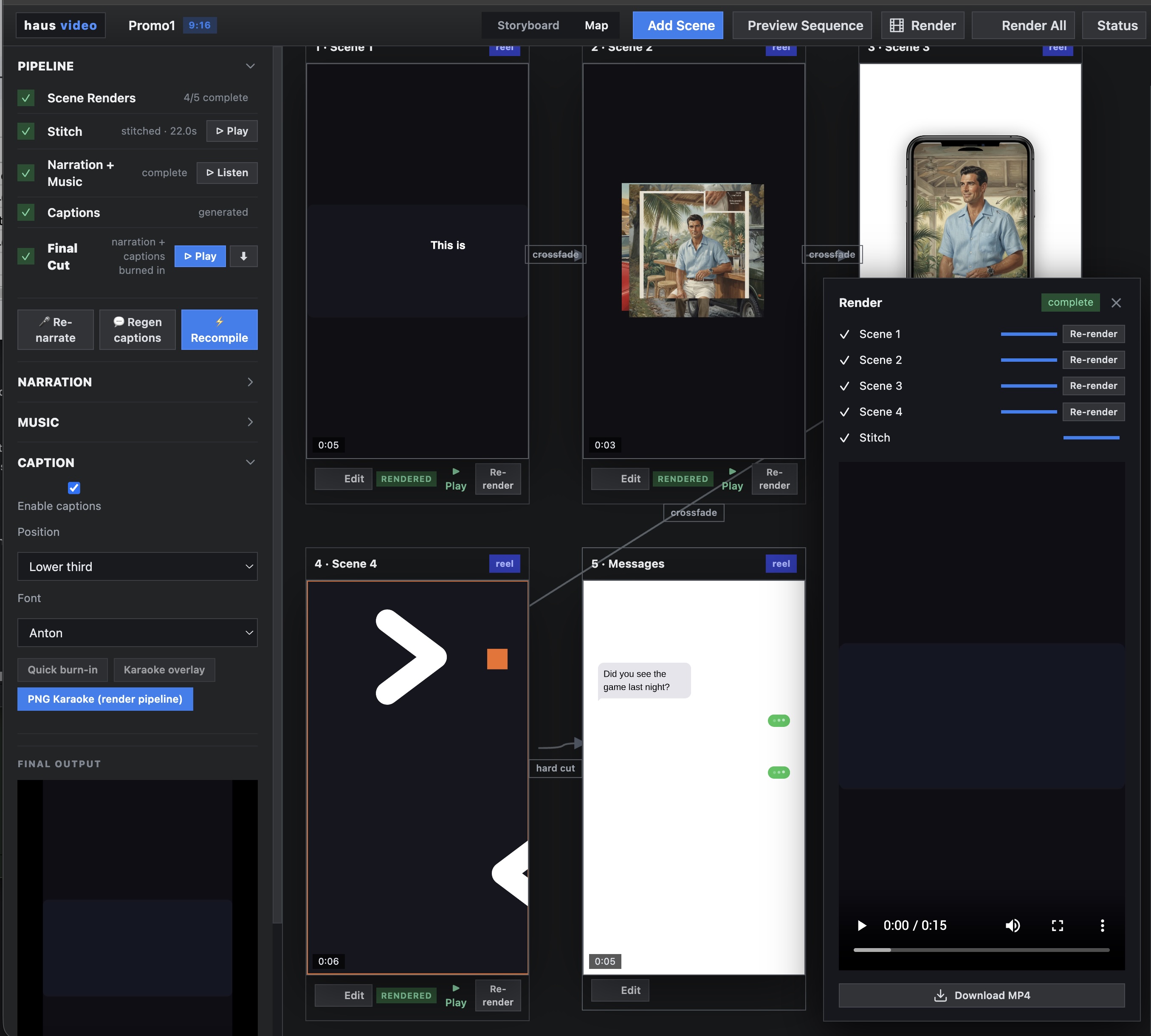
The automated path is still inspectable: prompt sources become storyboards, references guide AI visuals, video jobs add motion, audio assets complete the track, platform motion graphics finish the cut, and the results land in the reels editor for review.

End to end

One prompt. No further input. A finished MP4.

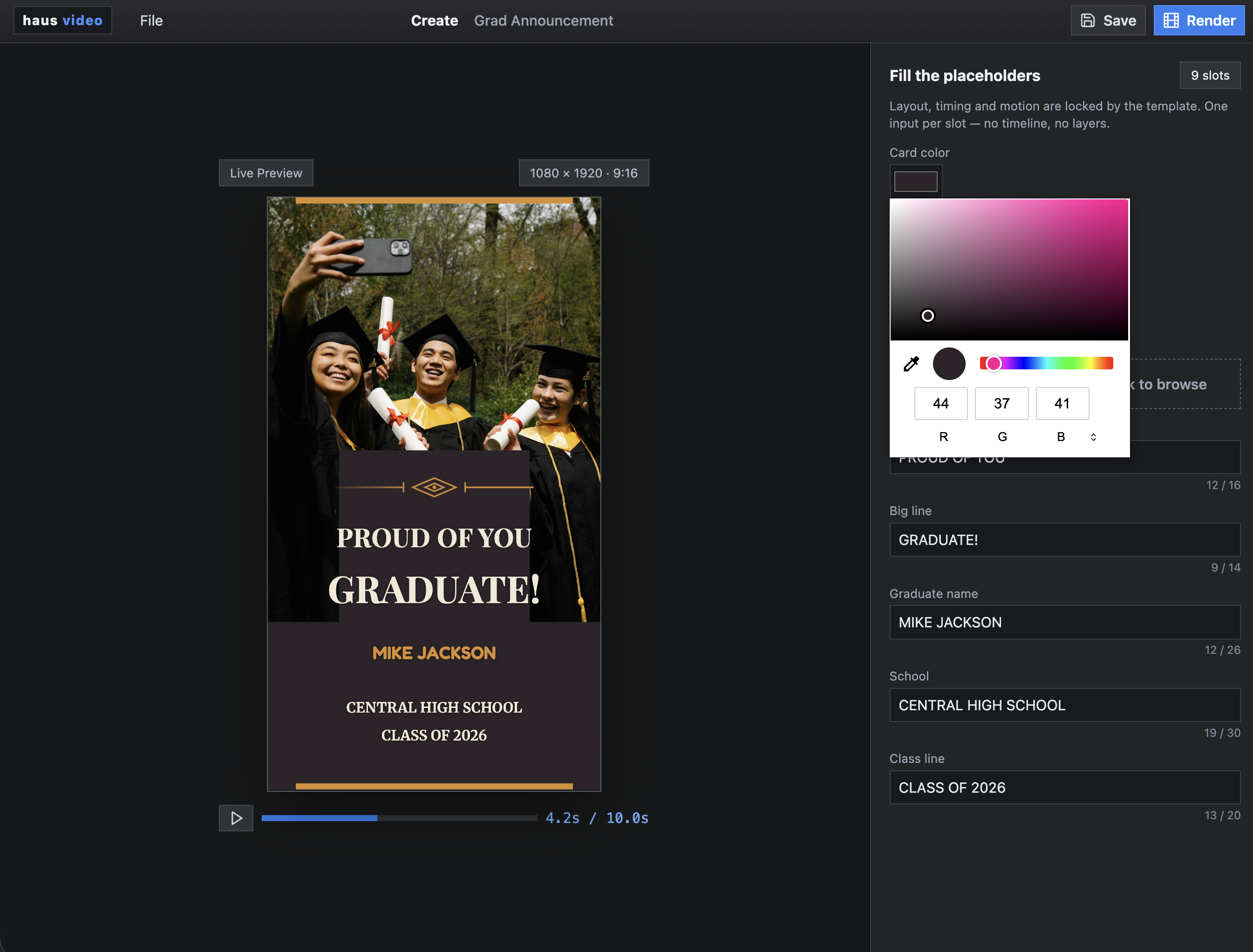
The user writes a single prompt, picks a visual style, and switches on auto captions, voice over, and music. Everything after that — script generation, scene creation, reference frames, render jobs, audio, captions, and final stitch — runs automatically. The user returns to a finished video.

Prompt entry screen showing the old money brief, 1940s fashion catalog style selection, and auto caption, voice, and music toggles enabled.
Step 1 — Prompt

The only input the user provides

An informational 30-second guide on how to dress old money. Cover the staples: herringbone tweed jackets, crisp tucked-in fitted shirts, and straight-cut trousers — contrasted against flashy, baggy modern fashion. Understated, elegant, timeless wealth.

The user selects a 1940s fashion catalog as the visual reference style, then enables auto captions, auto voice over, and auto music. That is the entire configuration. There are no further decisions to make.

1
Script generation The brief is structured into a script with logline, scene breakdown, shot types, motion direction, and voiceover text per scene.
2
Cast and reference frames Characters and wardrobe subjects are resolved from the cast library or created fresh, then reference frames anchor the 1940s catalog look across every scene.
3
Scene render jobs Image generation and video generation jobs run per scene — herringbone jacket close-ups, tucked shirt mid-shots, trousers in motion, and the contrast cuts to modern baggy fashion.
4
Audio, voice over, and captions AI voice over reads the scene scripts. Music is generated to match the understated, elegant tone. Caption timing is synced automatically from the voice over output.
5
Stitch and deliver Scenes, audio, and captions are stitched into a single finished MP4. No editor. No timeline work. No export steps.
Guided Map view showing the automated pipeline running — scenes populating in real time as script, cast, reference frames, and render jobs complete in the background.
Pipeline in progress

The map view shows what the pipeline is doing — the user does not need to

While the automation runs, the Guided Map view surfaces the live state of every job: which scenes are seeded, which reference frames are complete, which render jobs are in progress. It is observable, not opaque — but the user never had to intervene to get here.

Completed scene grid showing all generated scenes for the old money guide — styled in the 1940s fashion catalog aesthetic with captions and audio ready.
Scenes complete

All scenes generated, styled, and ready to stitch

Every scene is resolved: 1940s catalog aesthetic applied, voiceover attached, captions synced, music laid in. The board is complete. The stitch job runs and produces the final output.

Final output

The finished MP4 — produced entirely from one prompt

Motion graphics, AI-generated visuals in the 1940s catalog style, voice over narration, synced captions, and a generated music bed — delivered as a single finished asset. The user wrote one prompt. The platform did the rest.

Walkthrough

A full video walkthrough shows how the modes connect in the actual product.

This walkthrough ties the page together in product terms: Autopilot for the first pass, review at stage for inspection and correction, and Guided / Map Mode when the story needs to be reshaped before render.

Product walkthrough

See the board, map, re-shoot loop, and staged review in motion

The video walkthrough makes the handoff between modes concrete: prompt to seeded scenes, reference-frame generation, guided scene editing, subject correction with uploaded references, and final render decisions once the board is stable.

The real difference

Other AI video tools generate one video. Haus Video generates a content operation.

The platform is a turnkey package for enterprises and content teams who need to produce at scale — not one video at a time. A spreadsheet row, CMS record, or Airtable entry becomes a finished video package automatically: script, scenes, cast, motion graphics, audio, and captions, all running in the background. Content people stay in the tools they already know. The pipeline does the rest.

Location-level personalisation at scale A pizza chain or convenience store brand loads every location into a spreadsheet — address, phone number, hero image — and the platform generates a unique finished video for each one. Same brand template, same motion and audio, swapped assets per row. Hundreds of localised videos from a single production run.
Full series from a single subject A content editor defines a subject and series format — say, 30 thirty-second reels — and the platform generates each episode with AI-driven script, scenes, voice over, and synced captions. The result is a complete content series, not a single asset.
Built for B2B and enterprise content teams Reusable cast libraries, approved reference frames, brand-consistent caption styles, and locked scene templates mean creative standards are enforced automatically across every output — not just the first one.